Introduction
This guide is designed for AP professionals, system administrators, and anyone new to PO matching. Here, you’ll learn how PO matching streamlines invoice processing, reduces manual work, and boosts compliance. Let’s explore how to get started and unlock the full benefits of automation.
Purchase Order (PO) matching is a cornerstone of AP automation, enabling organizations to streamline invoice processing, significantly reduce manual handling, and improve purchasing compliance. This guide provides actionable insights and leading practices for successfully using PO matching in Rillion Prime, drawn upon experience and proven strategies from Rillion experts. It is structured to help organizations understand the benefits, how to configure the system most effectively, and manage exceptions with confidence.
A few things first
Make sure your organization has the correct license for the PO matching module. This is an add-on product and not included in standard packages.
Unsure about your license? Contact your Rillion Customer Success Manager for confirmation.
Internal and external purchase orders
Customers sometimes ask whether Rillion treats purchase orders differently depending on their source, whether it is created in the Rillion Buyer or imported from an external system. The answer is no. All purchase orders are processed the same way for matching in Rillion. The only difference is that purchase orders from Rillion Buyer often contain more data and details compared to imported ones.
Introduction to PO-matching
In Rillion Prime, both 2-way and 3-way purchase order matching are supported. But what is the difference between 2-way and 3-way?
A 2-way match is the simplest approach. It compares the invoice directly to the purchase order, ensuring that the quantities and prices align with what was originally agreed upon.
In a 3-way match, the system checks not only that the invoice matches the purchase order, but also that the goods or services actually have been received.
For most organizations, we recommend implementing a 3-way matching process.
The exception is when dealing with services or purchase orders where the invoice serves as the primary proof of delivery. In these cases, the purchase order still requires a goods-receipt in Rillion Prime to complete the matching process.
However, Rillion Prime offers the option to automate this step by creating a goods receipt automatically when the purchase order is imported into the system.
Choose the Right Matching Level
In Rillion Prime you can choose between total-level and line-level matching depending on the need. Matching on total level is best to use when you have one invoice and one order or where you have different units of measure between your purchase order and your invoice. Line-level matching is great when you have multiple deliveries, summary invoices, and/or multiple invoices per purchase order. Rillion Prime allows you to configure matching types per vendor.
Quantity and Amount Matching
In Rillion Prime, you have the flexibility to match invoices using both quantity and amount or just amount. The most common scenario is to match both quantity and amount, which is ideal for goods and standard item purchases. However, when dealing with services, matching by amount alone can be particularly useful, as quantities may not always be relevant.
Key distinctions
Quantity and Amount Matching: Ensures that both the number of items and the total cost are aligned between the invoice and the purchase order. This is the default and recommended approach for most organizations, as it provides the highest level of control and accuracy.
Amount Matching: Useful for service orders or cases where the invoice itself serves as the main proof of delivery. This method allows for greater flexibility when quantities are not specified or relevant.
Accurate purchase order data
Accurate Purchase order data is critical to make the automatic matching work. Ensure fields like item numbers, prices, and units of measure are correct.
Our recommendation is to perform regular reviews and price updates, to prevent mismatches and support automation.
When matching invoices at the line level, it’s recommended to store the vendor’s item number in your purchase order system. Rillion Prime can store both your internal item number and the vendor’s item number. With this way, instead of relying on just one value for matching, you’ll have two, which significantly increases the chances of finding the correct line automatically.
Using order confirmations is a great way to ensure that the prices and quantities on the purchase order match those on the invoice. This helps avoid discrepancies and improve automation.
Finetune the system for automation
If you are new to the purchase order matching in Rillion Prime or if you have used the module for a while, there are some settings that you can review to take your matching to the next level.
Validate purchase order number
One great feature in Rillion Prime is that you can set up a rule to validate that purchase order numbers are imported in correct format. By doing this, you will avoid receiving a lot of invalid purchase order numbers in the log and thus save a lot of time not needing to manually update these invoices. Follow this guide for how to set it up: Administration - How to configure validation of purchase order number and you will be ready in just a few minutes. This is a great way with just a few small adjustments, saving a lot of time.
Matching type for certain vendors
Another great feature you can use is to use a default matching type in the vendor register.
By default, all vendors are set to the matching type “Automatic”. What Rillion Prime will do is to choose the matching type based on the imported data.
If you import an invoice with a purchase order number and invoice lines, the system will set the matching method to “Match to purchase order - line level”.
If the invoice is imported with a purchase order number without invoice lines, the system will set the matching method to “Match to purchase order - total level”.
But there are scenarios where organizations want to control how the matching is done. One example is when you have different units of measures on the invoice and the purchase order. The total amount of the purchase order and the invoice is correct but when comparing the prices for each individual item, the system will indicate that there is a price variance. To address this challenge, configure the specific vendor to match on total level. This setting can be done in Administration > Register > Vendor. Search for the specific vendor and adjust the matching. Our recommendation is, however, that for most vendors, an organization should use the matching type “Automatic” to increase the chances of a match as the system then will automatically choose the matching type for the invoice.
Final control
Some organizations set up a final control for each invoice after approval, even for fully matched purchase orders. While this can feel reassuring at first - especially for AP managers who value control over time savings - it’s worth asking: is this step still necessary, and does it truly support the automation you are aiming for?
In fact, controlling each individual invoice doesn’t necessarily mean you get better control.
Our recommendation is to focus on the exceptions and set up rules for these instead. In the company settings you would then change the setting “Checking interval” to be 0 instead of 1.
To setup extra controls for certain accounts or vendors – you can instead use Rule-based flow auxiliary by following this guide Administration - Create a Rule-based Flow Auxiliary.
While you’re in the company settings, you can configure what happens to a fully matched invoice. Our recommendation is to set it so that a fully matched invoice is sent directly to your ERP system. In this section, you also define how invoices should be routed if there’s a variance and review the sequences you’ve configured. We’ll explain more about sequences later in the guide.
Leave the invoice in the invoice log
When an invoice is imported into Rillion Prime, the system attempts to match it to the purchase order. A common scenario is that the invoice arrives before the goods. If the invoice is sent out from the invoice log too soon, all matching must be done manually. Our recommended best practice is to keep invoices in the invoice log, allowing you to continue matching them easily. At the start of the day—or even before lunch—simply click ‘Match’ on the overview, and the system will automatically look for updated deliveries for you.
Automatic rematch the Invoices in the Invoice Log
To save time, you can schedule an automated job that matches all invoices in the Log. This ensures that all invoices are matched daily and leaves your team focused on the variances.
Typically, the rematch job runs once each morning, so your invoice log is updated when you start your day. If you have a steady stream of invoices, it can also run multiple times throughout the day.
Ready to Set It Up?
The rematch job is configured by a Rillion consultant. Contact your Rillion Customer Success Manager, for further assistance.
Number of days to rematch
The number of days an invoice is eligible for automatic rematching is configured in the company settings under the section ‘Automatic Rematching.’ We recommend setting ‘Automatic rematching in the Invoice Log for X days in case of price variance’ to 1. This ensures that invoices with a price variance are routed from the invoice log to the assigned person in the organization. That person can then decide whether to accept the variance or contact the vendor for credit.
For the setting ‘Automatic rematching in the Invoice Log for X days in case of delivery variance’ the number of days can vary depending on your business type. Our recommendation is to keep invoices in the log for at least one week to allow automatic rematching.
After one week, the invoice will automatically be marked in the transfer checkbox, allowing the variance to be handled by the team responsible for receiving the goods.
How are invoice lines and purchase order lines connected
When matching invoice lines to purchase order lines, the system uses a sequence of checks. Each sequence defines which fields must match for the identification to be considered reliable.
Example
- If an invoice line matches in Sequence 1 (Company, Vendor, Currency, Order No., Line No.), the process stops there.
- If not, the system moves to the next sequence, adding more fields like Item or Quantity.
The most common configuration is to have sequences 1–8 selected.
Uncertain line identification
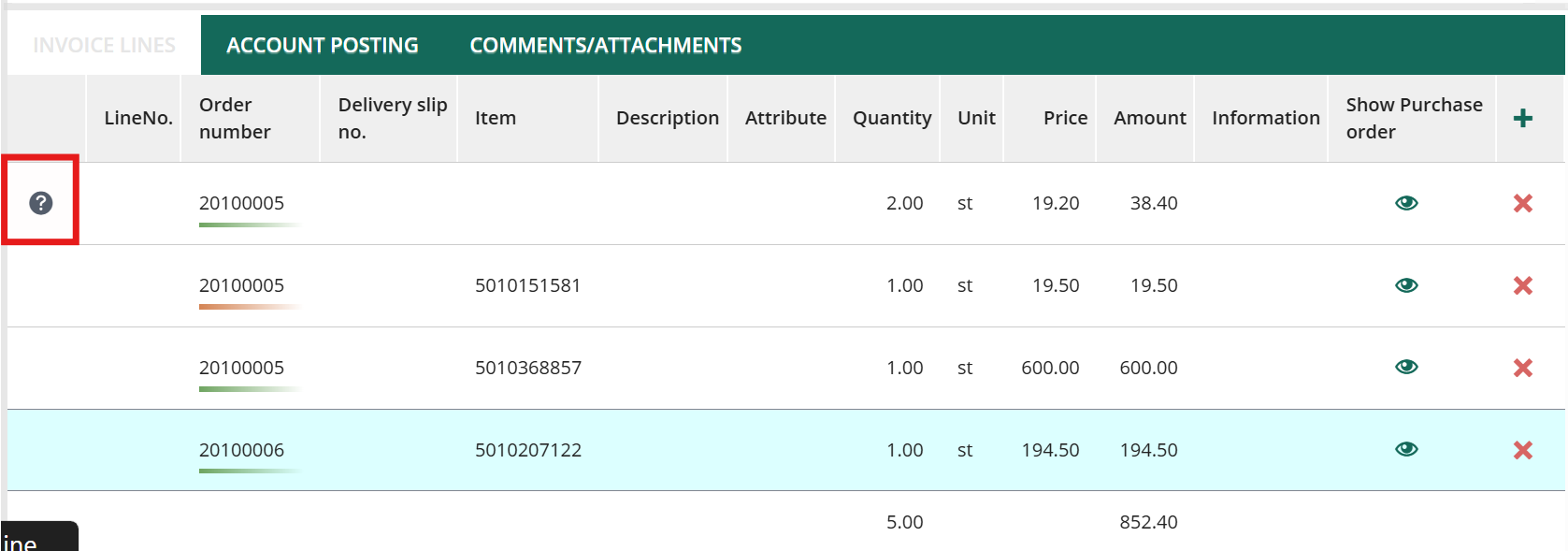
The system uses all sequences when attempting to find a matching line. If a question mark appears beside a line, it means the system found a match, but based on your sequences, it is not considered reliable.
Tip
If you have a lot of invoices where you get an uncertain line identification, but the matching is correct, review the sequence table to determine if some additional sequence should be marked as reliable.
Exception & Variance Handling
Most organizations working with PO matching will encounter that different units of measure are used on an invoice compared with the PO, different item numbers, extra charges, and freight costs.
Exceptions are routed to either the purchaser or the goods receiver because they usually know best whether the price variance should be accepted or if goods are missing or delayed.
Instead of having the AP team act as a coordinator, send invoices with price variances directly to the purchaser responsible and delivery variances to the team handling deliveries. This can be configured in the company settings as described earlier.
We recommend that organizations allow minor price variances. In Prime, you can configure the permitted price variance for each vendor. If no vendor-specific setting is applied, the company-level variance settings will be used.
In the following step by step guide Administration - Configure accepted tolerance and extra charges, you will learn how to configure accepted variances and how to configure accounts and tolerance for extra charges.
Color Coding – Matching Results
After matching—whether at line or total level—the invoice can have several statuses regarding the outcome:
Fully matched (Green)
The invoice amount, after deducting applicable fees and applicable taxes, falls within the tolerance of deviation allowed for the vendor or company.
Delivery Deviation (Yellow)
When an invoice is matched at the total level, it indicates that either nothing was received or there is nothing left to match. When matched at the line level, it means either nothing was received or the invoice includes more items than were received.
Price Deviation (Orange)
The system will only indicate a price variance when the invoice is matched on line level and shows if the amount on the invoices lines is outside of the configured tolerances at the vendor or company level.
Other outcomes (Red)
There may be several reasons for this status, e.g. The order number is missing in Rillion Prime; the invoice amount exceeds allowed tolerances or it could also be a delivery variance. When an invoice is matched at the line level, it will be color-coded according to the lowest matching outcome for the invoice at that level.
Manual matching when the invoice is in the flow
When the Variance Role receives an invoice, the Purchase order column displays the associated purchase order number, with the background color indicating the matched outcome. If there's a color but no number, it means that the order numbers exist on invoice lines but not at the total level. Follow the guide Purchase order matching - Exception & Variance Handling to handle different variances.
Level Up: Unlock more value
Start with total-level matching for quick wins, then expand to line-level as needed. Pilot the process with selected vendors, gather feedback, and then scale up the automation.
Practical Tips & Recommendations
Touchless Handling: Automate as much as possible and prioritize exception management. Focus on your top 10 vendors by invoice volume, as well as those issuing large summary invoices.
Role-Based Permissions: Ensure correct permissions for analytics and system configuration.
Vendor Communication: Provide clear invoice guidelines specifying all required fields and formats. Vendors should also list discounts at the item-line level rather than applying them to the total invoice amount.
Reports & Insights
Use Rillion Analytics Procurement Overview to review matching statistics and utilize the Procurement Trend reports for insights on purchasing trends. In Rillion Prime you can also find matching statistics, identify bottlenecks, and track automation rates. Make it a habit of reviewing reports regularly to adjust configurations and improve automation outcomes.
Concluding remarks
PO matching in Rillion Prime is a powerful tool for driving AP automation and improving purchasing compliance. By choosing the right matching level, maintaining accurate purchase order data, and configuring system settings for validation and variance handling, organizations can significantly reduce manual work and achieve touchless invoice processing. Focus on automation by setting clear rules for exceptions, leveraging vendor-specific configurations, and using Rillion Analytics to monitor performance and identify improvement areas. With these best practices, your organization can unlock the full potential of PO matching and streamline the entire procure-to-pay process.
Good Luck!