
Introduction
Great, the business is expanding, and you need to add a new company in Rillion. Whether you are rolling out Rillion Prime to new countries, or adding legal entities, this guide is designed for AP professionals and system administrators, providing the essential information needed.
Not sure where to start?
If at any point you feel uncertain, or if you’d simply like a Rillion expert to take care of the setup for you, just reach out to your Customer Success Manager or our Helpdesk. We offer professional consulting services to ensure your new company is set up smoothly and in line with best practices.
A few things first
Integration
Check how your current integration works:
Verify the integration type
- Is it a File Integration?
- Or Web service Integration?
If you’re unsure about your integration type contact your Customer Success Manager.
They’ll help you confirm and guide you through the next steps.
For some integrations, you can add new entities by yourself without the help of our Professional services team.
For others, you’ll need assistance where additional imports need to be configured by Rillion Professional Services team.
If you’re unsure contact your Customer Success Manager or our helpdesk, they can confirm if you can set up the integration on your own or if you need our Professional Services support.
Let’s get you started setting up a new company
Check master data
It is mandatory to add three standard accounts on the company: trade creditors account, expenditure account and VAT account. If the accounts in your Rillion Prime are company connected, this means that we need to create these three accounts to finish the setup of the company.
If you are not sure if your accounts are company connected or not, go to Register > Account and click Search. If the account in the list has a value in the company column, the accounts are company connected.
IMPORTANT: Make sure that do not mix company-bound registers with non-company-bound registers for the same type of master data (such as accounts, vendors, or other registers). Mixing these two types can lead to significant problems in your Rillion Prime environment.
If you see this in your environment, contact your Customer Success Manager or Helpdesk and they will help you out.
The reason why you shouldn’t mix is because non-company-bound registers take precedence over company-bound registers in the system. When both types are mixed, it can lead to problems with permission rights and disrupt daily operations.
Prepare and Configure Your Template Company
Before adding a new company in Rillion Prime, it’s essential to review and update the parameter settings in your template company. You can find the template company by navigating to:
Admin > Register > Company and selecting the company named “Template.”
Why is this important?
The template company acts as the blueprint for all new companies you create in Rillion Prime. Its settings are automatically copied to each new company. If the template is not properly configured, any inconsistencies or outdated parameters will be inherited by the new company, potentially causing issues in your daily operations.
Key reasons to configure your template company:
Consistency: Ensures all new companies start with the same foundational settings, reducing the risk of errors or mismatches.
Efficiency: Saves time by minimizing manual adjustments after setting up. Well-aligned templates mean fewer corrections and less troubleshooting later.
Scalability: Makes it easier to roll out Rillion Prime to new regions or entities as your business grows.
Best Practice
Before creating a new company, compare the template company’s settings with your existing companies. Make sure parameters such as approval flows, account structures, and integration settings are up to date and aligned with your organization’s current needs.
If you’re unsure about any setting, consult your Customer Success Manager or Helpdesk for guidance.
Taking the time to properly configure your template company will ensure a smoother setup process, reduce the risk of operational issues, and support your organization’s growth with confidence.
Permissions
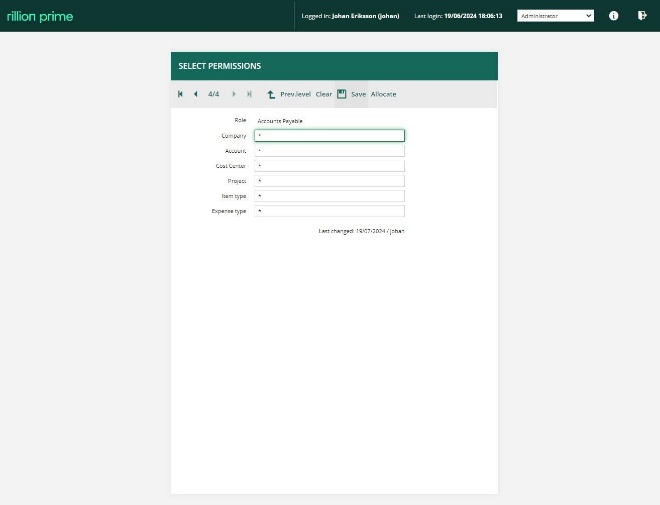
Ensure roles have correct permissions for the new company. If the existing roles have an * Asterix in their “Select permissions” they will automatically get access to the new company.
Create basic registers
If you are using common registers, you will only need to create an Invoice Series under Administration > Invoice > Invoice Series. If you are using company bound registers, meaning that each company has their own chart of accounts, etc., you will need to add the standard accounts manually.
Test End-to-End Process
Before going live, always test your setup by creating a test invoice or use a real invoice to verify that posting works correctly in both Rillion Prime and in your ERP system.
For detailed instructions how to add a new company, follow the guide Administration__Setting_up_a_new_company_in_Rillion_Prime
Concluding remarks
You’ve now got the essentials for setting up a new company in Rillion Prime. By taking time to check the integration, prepare your template company, and test the process you will save yourself from headache and keep everything running smoothly.
If you get into problems or just want a second opinion, your Customer Success Manager or Helpdesk can help you out. We’re here to make sure everything goes as planned—so don’t hesitate to reach out.