Create an EU-TAX template in Rillion One
In Rillion One, you can make settings so that EU-TAX is posted automatically when invoices from EU suppliers are received. To do this, you need to create a template.
Create an EU-TAX template
- Go to Administration → Accounting template → Create new
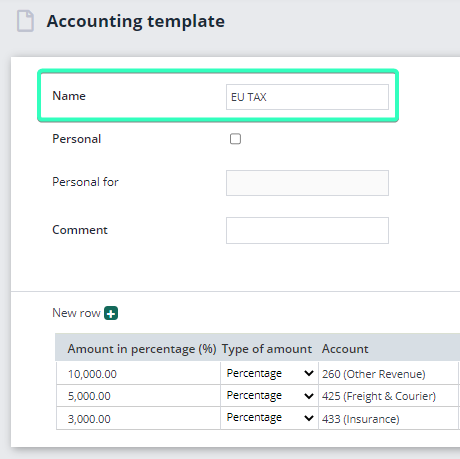
- Create your EU-TAX Goods template as shown below. You can add other dimensions and approvers if you wish. When you are finished, click Save.
NOTE! The accounts below are from the test environment.
- Then go to Administration → Auto template → Create new.
- Give the auto template a name. Select your EU-TAX template in the Accounting template field and select the checkbox as shown below. Then select the suppliers to whom the template is to be applied. The template will now be applied to all invoices from the selected suppliers.
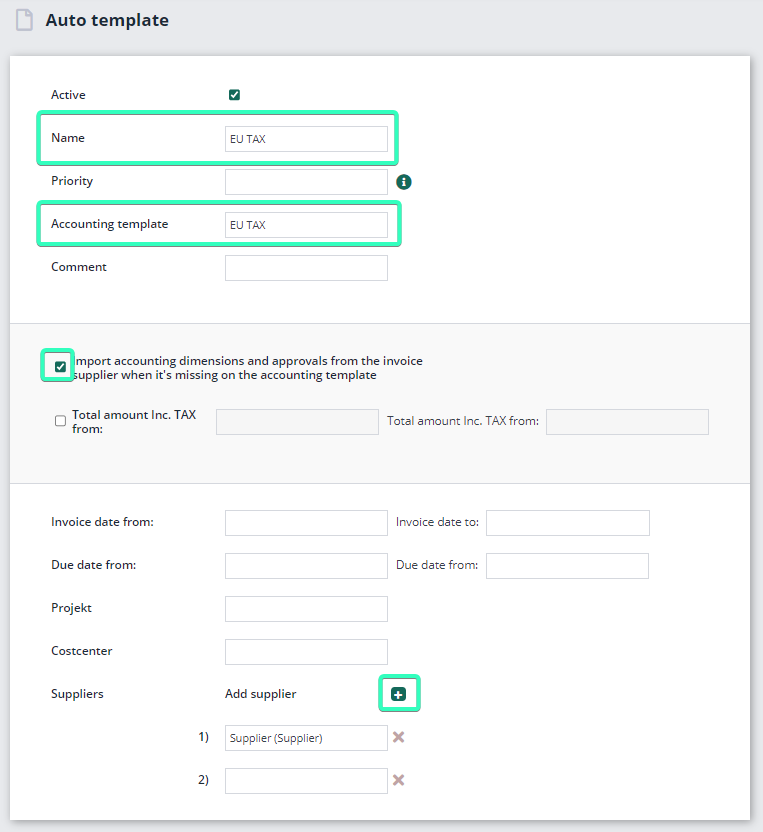
NOTE! Check that the TAX field is empty in the invoice view when the template is applied, as the TAX will now be applied to the posting lines instead.