Create substitute in Rillion One
If for any reason (such as annual leave, parental leave, sick leave) a user is not working for a while in your company, you can designate a substitute who processes the users’ invoices and approvals. This means that you don’t need to change any settings in the approval flows or after additional review rules; the invoices will simply be sent to the original user as usual, but also to the substitute. Afterwards you can then see which of the invoices that have been approved by the substitute, even if they were sent to the original user as usual.
Create substitute
Admin can create a substitute for a user:
Go to Users. Then select the user that you want to create a substitute for and then click on the Edit pen next to the user’s username. Some new tabs will then appear along the top of the page.
An approver can create a substitute:
Go to My Profile and then Substitutes.

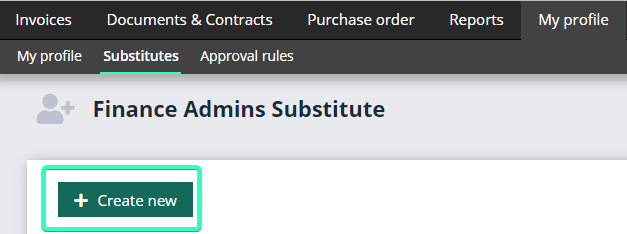
Then click on Create new.
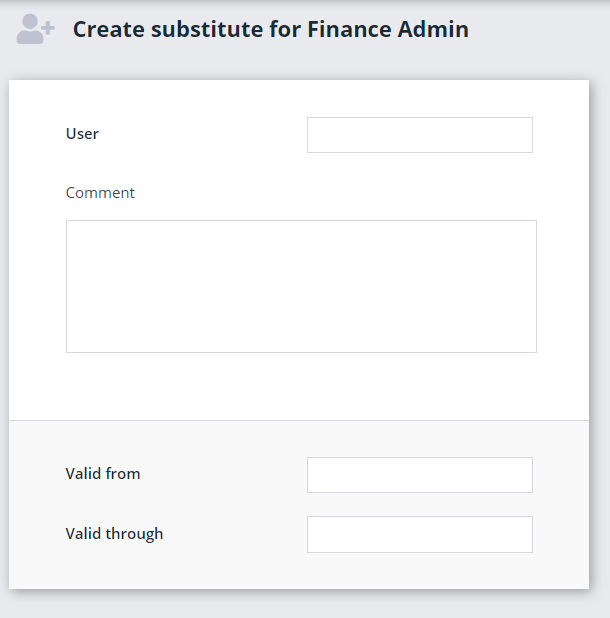
Fill in the date from which the substitute is to be active. Under Users you select the user to be the substitute. Finish by pressing Save.
What is the view like for the substitute and the original user?
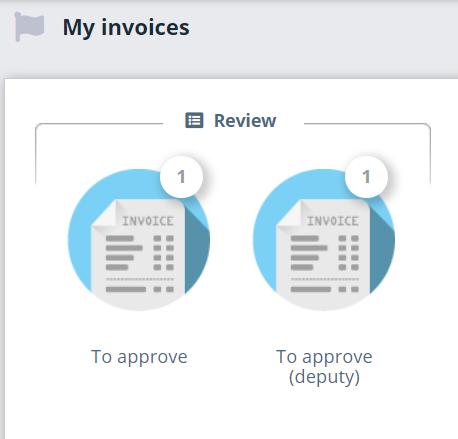
The substitute will now be able to see the invoices sent to Approver A in their own invoices overview. These invoices are placed in separate folders that make it clear that they have come in as invoices to be processed in the role of substitute. Approval and additional review are then done as usual.
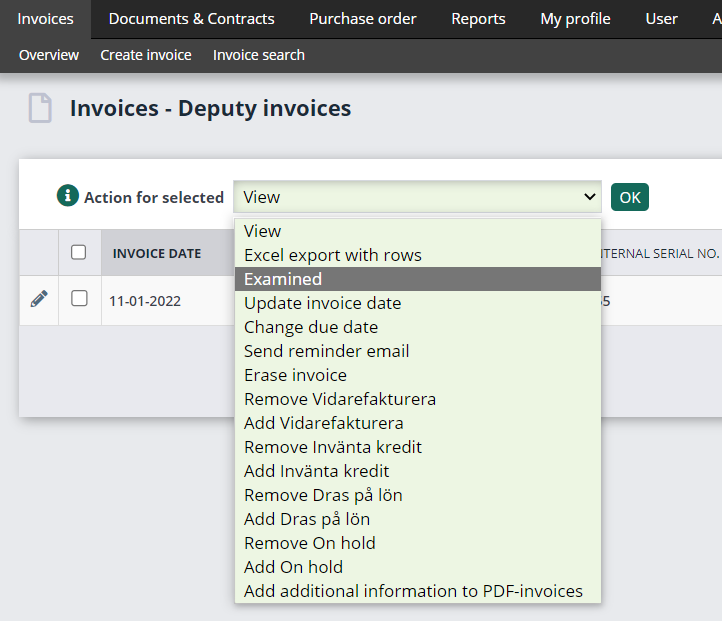
When Approver A comes back from leave and wants to see which invoices the substitute has approved for him/her:

When Approver A opens the folder, there will be a list of all invoices awaiting final review from Approver A. Just like all other list views, you can select multiple lines at once and mark these as Examined, and then click on OK.