Instruction for Excel export/import
The Excel posting button can be used to transfer postings done in Excel to posting lines in Rillion One. This might be useful when you would otherwise have to manually enter a large number of posting lines or when performing advanced VAT calculations in connection with posting an invoice. Examples of such invoices are credit card invoices from Enter card or Mastercard.
Instructions
1. Start by creating an Excel template that has the same look as your posting lines in Rillion One. In this example: Amount, Account, Cost Centre, Project and Approver. You can Download sample file from Rillion One if you click on the Excel button if you prefer to use this template instead of creating your own.
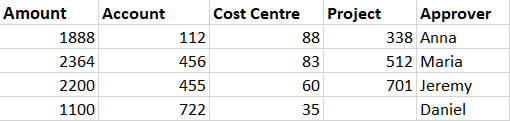
2. Do your posting in the Excel template (see example below). Make sure that the usernames of the approvers are properly entered. Note that you can also add VAT to the posting line. When you do this, at the same time it resets the VAT in the invoice header to zero (0).
3. Select your postings in Excel and copy the area you selected. Do not select the column headings (Amount, etc.).
4. Click on the invoice in Rillion One.
5. Click on the Excel button above the posting line. This brings up a dialogue box where you can paste the postings you copied from Excel. There is also an option to “Export lines Excel” which gives the user the option of exporting their postings to Excel.
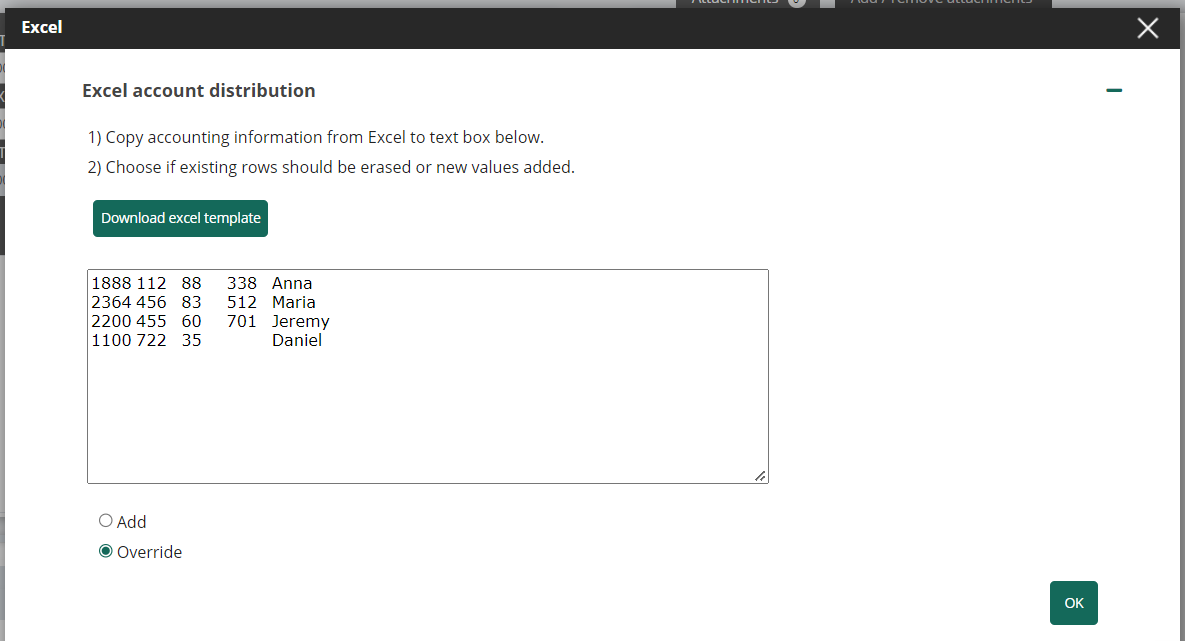
6. Select Overwrite and click OK.