Functions in the invoice list
There are a number of common functions in all invoice lists. On the right side of the search results, there are three icons.
Export to Excel

Mark the invoices to be exported to Excel and click on the Excel icon and then select which columns you want to export to Excel. When the user is in Excel, they can do more with the search results. If you click on the button without selecting invoices, all invoices in the search will be included.
Merging of multiple invoice PDF files to a single PDF file

Mark the invoices to be merged into a single PDF and click on the PDF icon. The user will then get a downloaded PDF file that contains all the invoices marked before clicking on the PDF icon. This is useful for re-invoicing for example, or if the user wants to save or print multiple invoices simultaneously. If you click on the button without selecting invoices, all invoices in the search will be included.
Select your own columns to view in the search results

By clicking on the Column symbol, each individual user can choose what they want to see in their search results. An invoice administrator might want to see different columns to an approver.
Quick overview of posting for an invoice

Each invoice has an Information icon. The user can mouseover this icon to get a quick overview of the posting for the invoice.

Batch processing of invoices
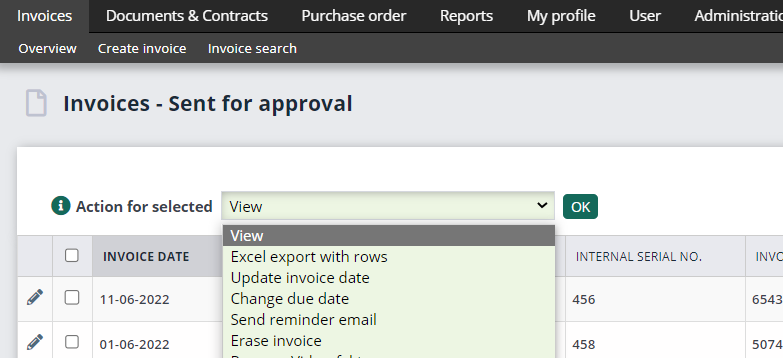
You can select multiple invoices simultaneously in invoice lists to make processing more efficient. When you have marked the invoices that you want to work with, you can select the Action for selected. Depending on the folder you are in (Review, Additional review, On hold, etc.), there will be different options. But in all cases, the action that you chose will be applied to all the invoices you have selected. The example below shows what actions are possible in the folder Sent for approval.