
Using Analytics and Reports is a powerful way to track key business metrics and identify opportunities to improve your AP process. This guide will help you navigate reports and highlight some of our favorite ones to support better analysis and decision-making.
Analytics vs. Reports
Rillion Prime provides two kinds of reports.
- When speaking of Reports in this guide, we refer to the default reports that are available under Reports in the system. Here you can search for specific invoices and get some basic reports of the current situation in the system.
- Analytics provides complimentary Business Intelligence dashboards designed for deeper insight and interactive analysis.
A few things first
Reports are available to all packages. However, Rillion Analytics requires a Professional or Premium package subscription. If you’re unsure about which package your organization uses, contact Rillion Support or your Customer Success Manager for confirmation.
Activation
To access Rillion Analytics, it must first be enabled in your Rillion Prime environment. If you’re uncertain whether Analytics is available, check with your system owner or Customer Success Manager.
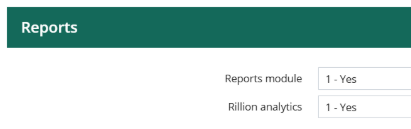
Once enabled, Analytics will appear directly within the Rillion Prime interface for the Administration Role. To activate it for more users, add a permission group by including a “Yes” in the Rillion analytics field, as shown below.
Rillion Analytics Overview
Rillion Analytics helps you monitor automation levels, supplier behaviour, approval flow efficiency, and trends in invoice handling.
You can also view the spend and cash flow reports to support forecasting and budget control.
With 17 ready-made reports, it’s easy to track your automation rate and identify areas for improvement—such as enabling contract matching or refining approval flows. All reports are user-friendly and require no advanced analytics skills.
Access to Analytics is role-based. If you don’t see the Analytics tab or specific reports, your system administrator can update your permissions.
Let’s start using Analytics
After activation, Analytics reports are available under the Analytics section in the application.
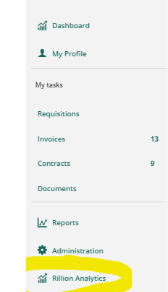
Clicking the link opens the Analytics Arena in a new browser tab.
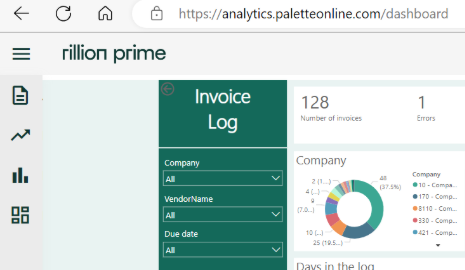
There are four main report categories:
 AP Reports
Real time data Reports for AP, Accounting managers and CFOs

KPI Reports for AP, Accounting managers and CFOs

Reports that will suit roles like Controllers, Treasury and Managers

Insight Dashboard including benchmark metrics for CFOs, Controllers and Managers
Procurement reports
You will see the first report on the screen (AP Reports) as the starting page:
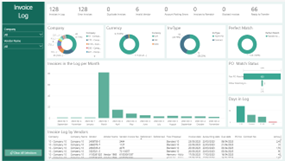
We will first go through each section of the report.
Navigating Analytics
Analytics opens in a new browser tab, allowing you to easily switch between Rillion Prime and your reports. 
When you’re done reviewing, simply close the tab.
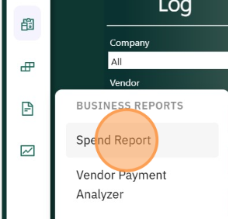
Choosing Report & Using Slicers
Hover the curser over each report tab to select the specific report you want to view.
Filtering section
The filtering section—called slicers—lets you narrow down data by parameters such as company or vendor.
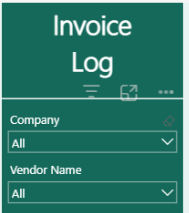
Use the Clear All button to quickly reset your report.

Tips:
Slicers are positioned close together—click carefully to avoid overlapping selections.
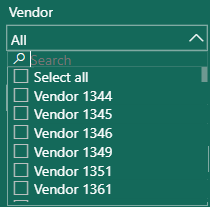
Most slicers support search. Use “Select all” for multi-selection, or type in free text to search.
If you want to filter on Vendor, you can:
Select all and then deselect unwanted vendors.
Press Ctrl and click to select multiple vendors.
Analytics Section (Visuals)
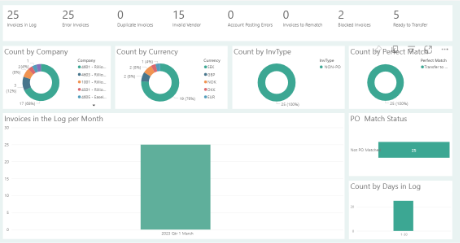
The charts and visuals in Analytics display your filtered results.
You’ll find a mix of bar and pie charts representing companies, currencies, or other dimensions.
Hover over visuals to see tooltips (the question mark icon) for additional context. To enlarge a visual, use the Focus Mode icon (the expanded box with an arrow).

Click Back to Report to return.
You can also filter directly from visuals:
Click a segment in a chart to filter the rest of the report accordingly. Click again to reset.
Note: “Clear All” resets slicers only, not visual filters.
Tables and Lists
Each report includes a detailed data table at the bottom.

You can enlarge it using Focus Mode or export it to Excel via the More Options (⋯) menu and select Export Data.
Tables often start with an invoice link symbol—clicking it opens the corresponding invoice image in a new browser tab.

From there, you can review the invoice or add comments before returning to Analytics.
Our favorite Analytics reports
Invoice Summary Report
When you want to identify vendors who are not sending electronic invoices and/or vendors with unsuccessful automation results the Invoice Summary report is a great tool. The report highlights where automation can be improved or where e-invoicing adoption is low.
A step-by-step guide referring to this report are Analytics - view successful flows
Contract Candidates Report
When you want to identify vendors who are sending invoices with similar amounts each month the Contract Candidates Report is a great tool. When these vendors have been identified, they can be set up for Contract matching that is a perfect tool to use for automation as it provides touchless approving of invoices.
It is the sixth report in the AP Performance Tracking category.
A step-by-step guide to this report is available here: Analytics – Touchless invoices
Spend Report
This is the first report in the Business Reports category.
It’s used to analyze spend data, with filters available for Companies, Vendors, Accounts, and Dimensions.
This report provides valuable insights into purchasing behavior and spend patterns—making it a favorite among CFOs, Controllers, and Managers.
A step-by-step guide to this report is available here: Analytics – Spend Report
Analytics user guide
A complete user guide for all Analytics Reports is also available: General guide Analytics
Reports in Rillion Prime
In addition to Analytics, Rillion Prime offers several built-in reports.
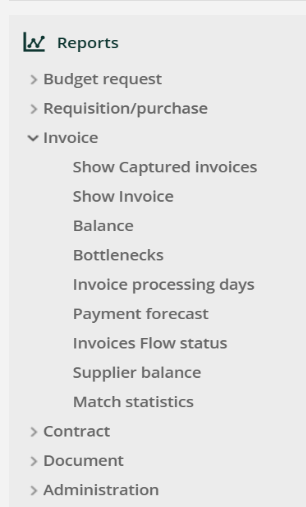
Show Invoice
This is the flagship report that enables you to search for one or more invoices using multiple criteria. It is one of the most frequently used reports by AP Managers and Business specialists.
Start a new query by pressing clear to remove the default search criteria.
Search Tips
You can search by using vendor name, period, or other fields.
Wildcards and special characters help refine your search:
Character | Description | Example |
* | Any sequence of characters | *water* → finds “NY Water Inc.” |
! | Field has a value | Used in Contract Number to find invoices with a contract |
? | Field has no value | Used to find invoices without a reference |
# | Excludes a value | #IC* filters out vendors starting with “IC” |
- | Range between values | 6800–6890 for account coding ranges |
You can also save search criteria for future use by giving them a unique name.
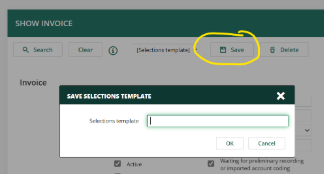
Once your results appear, click on any invoice to view, comment, or edit.
Move active invoices from a role
Administrators can change the flow or reassign invoices—see the step-by-step guide Move active invoices from a role
Print and export
With the Print image button, you will be able to export invoices to Excel or a PDF.
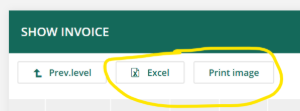
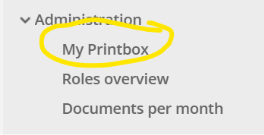
Generated PDFs appear under Reports > Administration > My Print box.
Note: “Show Invoice” only lists invoices that have been transferred from the invoice log to the flow.
To view newly captured invoices still in the log, use the Show Captured Invoice report instead.
Show Captured Invoice
This report lists all invoices, including those not yet in the workflow.
It has fewer filters since accounting fields are not yet assigned.
Using a “?” in the Reference field for a specific vendor to find all invoices missing a captured reference is a great way to find these cases.
Note: The “Show Captured invoices report” shows the invoices the way they were imported, before any changes were made in the invoice log.
Balance
Use this report to review account or cost center balances over a selected period. For example, if you search for all active invoices together with an account range, you will get a list of all invoices currently in the flow in Rillion Prime that have not been final booked in the ERP, summarized per account. If your organization does not use preliminary bookings, this is a good way to find out upcoming charges at month-end closing.
Invoice processing days
This report will give you an overview of your most commonly used vendors, but also which vendors’ invoices are time thieves, that requires handling many roles. By identifying those vendors, you can work automating them.
Roles overview
In this report, you can search for all roles that have the same Manager role, for example. This can be useful if a role is to be deactivated, or if you are making organizational changes.
System reports
System reports are administrative reports that facilitate audits and integrations (e.g., log reports).
Note that you must be logged in as an Administrator to access them.
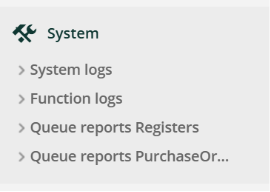
Useful examples include Function Logs and Queue Reports, which can assist in integration troubleshooting.
Concluding remarks
Congratulations on reaching the end of this guide on Analytics and Reports in Rillion Prime.
Throughout this document, we have explored the key concepts and practical steps for using best practices for the most useful reports.
In Rillion Helpdesk you also find more detailed guides and instructions.
Good luck and enjoy making your AP processes more efficient.