Create users in Rillion One
To create a user and assign permissions in Rillion One, do the following:
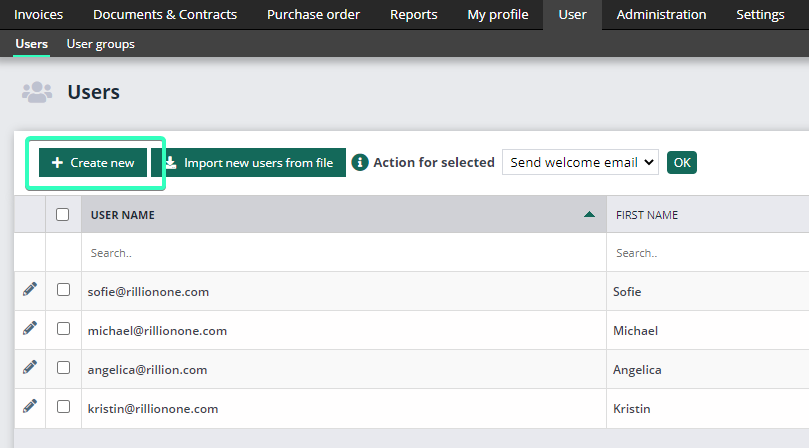
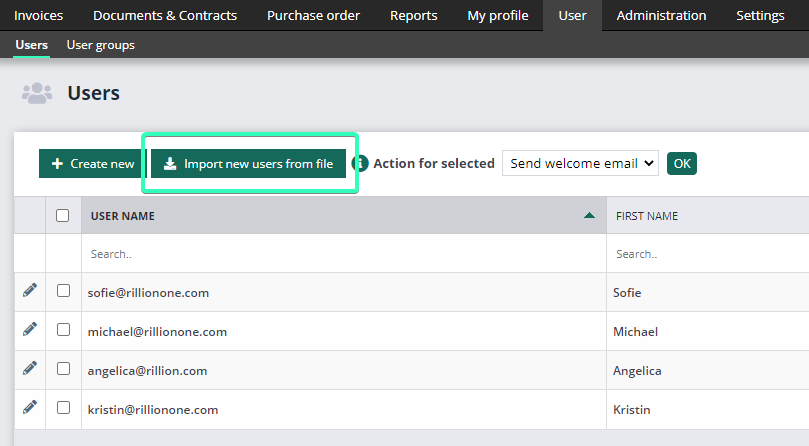
Once you have logged into Rillion One, click on the main heading User and then Create new. If you want to create multiple users at the same time, you can click on the button next to this “Import new users from file”. More information on this will follow.
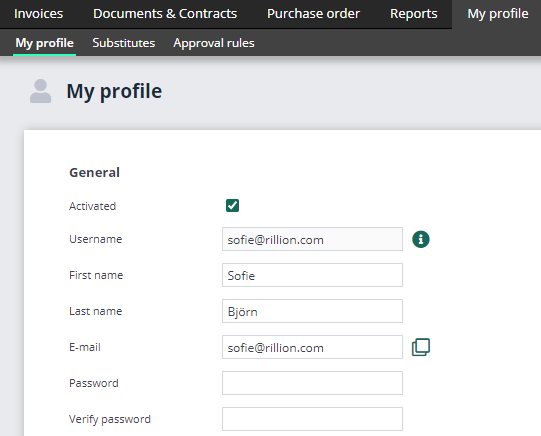
Use the email address as the username as this is easy to remember and unique to each user. The username is copied into the E-mail field. Please note: The username field cannot be changed later, so be extra careful when you fill in this field. Other settings can be changed. The username and password are case sensitive.
You also have the option to Import new users from file. Click on this button to import multiple users from an excel file and follow the instructions. It is only possible to import new users from file, you cannot update existing users through file import.
The next step is to choose a password and language for your users. You need to choose a password to begin with and then each user can change their password when they log in to Rillion for the first time.
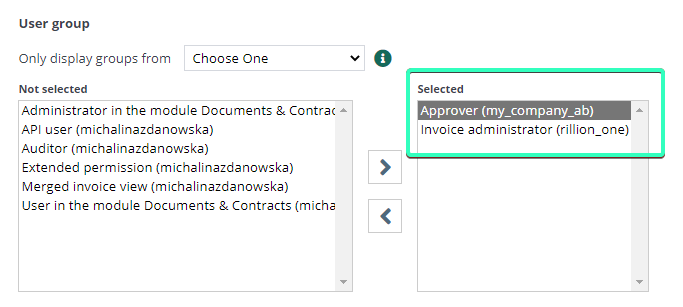
The next step is to choose which companies and user groups/permissions your users should have. The most common types are:
Invoice administrator
Can see and handle all the invoices in the system and can also handle all templates, users and rules in Rillion One for the chosen company/companies.
Approver
Can approve, see, and search for their own invoices in Rillion One for the chosen company/companies.
Extended permission (must be combined with the user group Approver)
Can approve, see, and search for their own invoices in Rillion One and also see all invoices for the chosen company/companies.
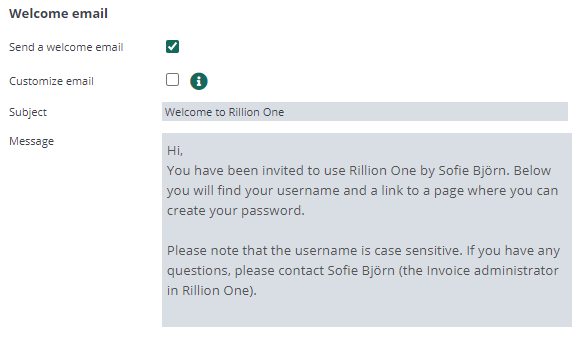
Send welcome email to new (and/or old) users
When you create a new user, you have the option to send a welcome email to the user who can then click on a link and create their own password. Users can also see who created their user and the email also comes with a link to Rillion One. If the user's profile is in Swedish, the email is in Swedish and if the user's profile is in one of Rillion's other languages, e.g English or Finnish, the email is in English.
Please note: “Send a welcome email” is ticked and chosen from the beginning, but you can uncheck this and instead send an email to all users at the same time once they have all been added. More information on this will follow.
Save the user profile by clicking on the blue Save button in the bottom right-hand corner.

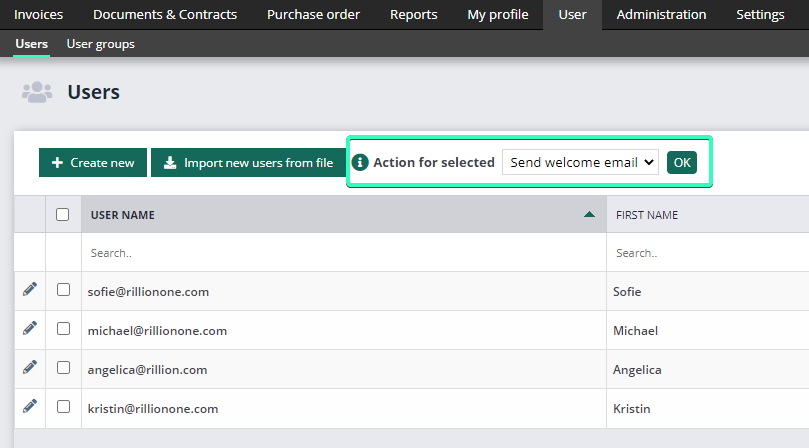
If you wish to send the welcome email when all of the users have been added or at a later stage, you can do so.
Either tick the users you want to email or choose all by ticking the box to the left of “USERNAME”. You are also able to edit the text in the email and write your own text if you wish.