
A quick way to improve your AP automation levels is to focus on your highest-volume vendors. By concentrating on your top 10 vendors, you can make a significant improvement with a relatively small effort.
This guide will help you get started with vendor prioritization and provide practical tips on what you need to do to succeed.
A few things first
Several of the reports mentioned in this guide requires access to Rillion Analytics. Rillion Analytics is included in your license if you have the Professional or Premium packages. If you are unsure of which package your organization has, you can contact Rillion Support or your Customer Success Manager.
Please also note that access to Rillion Analytics is controlled through role-based permission groups. If you don’t see the Analytics tab or specific reports, your role may need to be updated to include the correct permissions. Your system administrator can adjust this for you.
Why focus on the 10 largest vendors?
It’s easy to get distracted by exceptions, but concentrating on the largest vendors is the fastest way to improve AP automation levels and gain significant efficiency improvements. High-volume vendors usually represent around 30-40 percent of an organization’s total invoice volume, and once they are set up correctly, your team will spend less time on repetitive corrections.
Let’s identify the 10 largest vendors
If your organization uses Rillion Analytics, you can quickly identify your 10 largest vendors by invoice volume by using the Invoice summary report.
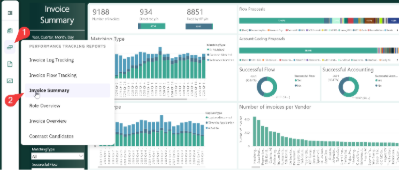 Start by opening Rillion Analytics and select the Invoice Summary report.
 - Adjust the date range to focus on the most recent invoices so your analysis reflects current activity. You can see the vendors with highest invoice volume in the graph “Number of invoices per Vendor”.
You can also perform a vendor data export from Rillion Prime where you go to Reports – Invoice – Vendor Balance. Remember to select an invoice period, preferably for the current year’s invoice data. Sort the result on number of invoices by clicking on the Number of invoices column in the result. Export the result to excel or write down the vendor numbers.
Depending if you want to focus on the vendors with the highest volume and unsuccessful accounting, unsuccessful flow or unsuccessful vendor identification you can filter in Analytics by clicking on the different pie charts.
To start working with unsuccessful account postings, click on “Successful Accounting-No” and the report will be filtered for you. To work with the vendors having issues with the identification, you go to the report Invoice Log Tracking and click on the blue part of the filter “Vendor Change” on the top.
The report will now show you invoices for vendors that need to be corrected in the invoice log.
Recommended approach
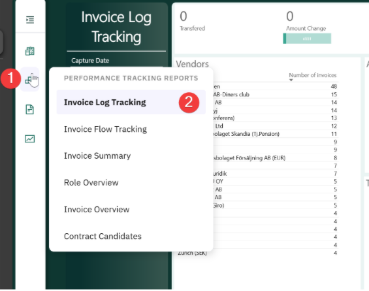 The recommendation is to start by reviewing the vendor identification, then review the account postings and finally review the flows.
Unsuccessful vendor identification
1. Check the overall matching rate.
Start by reviewing how many invoices are being successfully matched. If the matching rate falls below 90%, it is recommended to investigate further to understand the underlying causes.
2. Identify what the invoices are being matched against.
Look into which fields the invoices are matched to, for example: bank account, organizational ID, IBAN, or VAT number. You can either do this from the report Show Captured invoices in Prime or in Analytics with the report Invoice Log Tracking.
3. Review the Vendor Register for vendors that are not matched. For these vendors, examine the information stored in Prime. This will clarify whether the issue is with missing or inconsistent master data or with the captured invoice data.
Refer to the “Troubleshoot issues with vendor recognition” guide for a step-by-step analysis. for how to perform the analysis.
4. Look for recurring patterns in missing or incorrect data.
Check if there are systematic issues —for instance, IBAN numbers containing hyphens, prefixes included in account numbers, or other formatting inconsistencies. These types of issues often indicate that the master data needs to be cleaned up. It is recommended that organizations should regularly update their vendor master data to reduce such mismatches.
5. No Clear Pattern, Mismatched Values. If you find an obvious pattern but the captured value does not align with the vendor's stored data, the correct action is to update the missing information directly in the ERP system. This will ensure consistency moving forward.
Unsuccessful account postings
Review historical invoices to identify consistent account posting patterns.
Export the account posting of your top 10 vendors with the Show invoice report by navigation to Reports-Invoice-Show Invoice, enter the vendor numbers into the vendor field that you picked up previously with the Vendor Balance Report or from the Invoice Summary report you can follow the step-by-step guide “Analyze Account Posting Lines in Rillion Prime” to make a pivot table.
Once you have analyzed the data and identified which accounts and dimensions can be preconfigured for vendors, the next step is to configure the system, accordingly, enabling automation of these processes. The step-by-step guide "How to create an account posting proposal in Rillion Prime" explains how to do this from scratch.
Settings on the Account Coding Proposal that should be used.
Select all the options for picking values from other places in the system.
Account from vendor or item type – The default expenditure account in the vendor register will be picked to the invoice line.
Use captured reference as objects – Invoice values from the Reference 1 and Reference 2 fields can be used to create the account coding. If a value is a valid object (O1-O8) and the company's settings are configured to use it, the value will be added to the invoice's coding line.
.
Use set
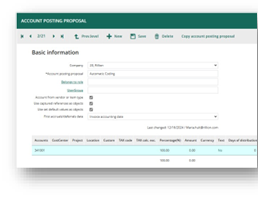 default values as objects - On Account, Objects, Vendors and References it is possible to add default values. We can pick those values to generate the account coding for an invoice or requisition.
Also ensure you have activated the “Use specified default object values to complete account posting string” check box in the company settings.
If your integration supports fetching default cost accounts and dimensions you should configure it in your ERP for your top 10 vendors. If you are unsure if your integration support this, create a ticket with your organizations IT/system support helpdesk and they can look it up for you.
It is also possible to configure these settings directly in Rillion Prime. However, it is important that you create a ticket to Rillion helpdesk and get a confirmation that you can do the changes, before you start to configure these settings directly in Rillion Prime. The fields need to be set as “protected” so they are not overwritten by the integration, so make sure that you get a confirmation from our helpdesk that this has been made. If you are unsure and need help reach out to your Rillion Customer Success Manager.
When this is done you are all set to add the default values for the vendors. Start by navigating to Administration-Register-Vendors, search for your top 10 vendors by adding the vendor number in the field vendor and click on the vendor when it is displayed in the list. Scroll down to the section Account posting and enter the account and desired dimensions that you want to use as default for this vendor.
Unsuccessful approval flows
Check the Invoice Summary report
Open the Invoice Summary report in Rillion Analytics and apply filters to identify unsuccessful flows by vendor. The report highlights which vendors your organization is consistently experiencing problems with and provides a clear view of where to prioritize corrective actions.
Compare suggested versus actual flow
Review the difference between the flow suggested by the system and the actual flow being executed. Look for recurring patterns or mismatches that may explain why certain invoices are not processed as intended. You do this by comparing the actual roles in the flow proposal used on the invoice with the ones that were on the actual invoice. Is there some role always missing in the flow proposal that could be added into the flow proposal to make it successful?
Examine invoice references and adjust when needed
Pay close attention to the references used on invoices since these play a key role in how the suggested flow is determined. If the current reference does not work, set up a new flow configuration. When necessary, reach out to the vendor and request that they adjust the reference information on their invoices to ensure that future processing is successful.
Low rate of touchless invoices
In the Executive Dashboard with Automation in Analytics you can view your level of touchless invoices. If the level of touchless invoice processing in your organization is lower than expected, please reach out to Customer Success for support. Improving purchase order and/or contract matching often requires a more in-depth analysis.

Engage with vendors
Communicate with your largest vendors to align invoice formats and required fields, especially reference fields that could help Prime to route the invoice to the correct workflow. The ideal situation is if you can get the vendor to set a reference on the invoice that contains the account, cost center or any other dimension value that also can be inherited to the account posting. Ideally, provide a vendor invoice instruction to avoid incomplete or incorrect data.
If you are using purchase order matching or contract matching it is particularly important that you get the correct values directly from the vendor to minimize manual changes.
Level up: Unlock more value
Once your top vendors are automated, expand your focus to the next 10–20 vendors by volume. This staged approach ensures you achieve large automation gains early while steadily increasing overall efficiency.
Another way to improve automation even further is to review the Contract Candidates Report in Analytics to identify Vendors that send invoices that could be fully automated by using Rillion Contract. To learn more about how to analyze the results by following the step-by-step guide "Identify potential contract candidates".