Documents and contracts in Rillion One
Documents and contracts in Rillion One is an optional module where you can store documents and contracts. Supplier contracts stored here can also be linked to the Invoice module in Rillion One. This means that the approver can view the associated supplier contract when checking an invoice from the supplier concerned. Other functions in the module include reminders when a contract is about to expire and the option to extend the contract automatically.
In this manual, we will go through the following:
- Overview – How does the module work?
- Document Types and Document Categories
- Document searches
- Attachments to contracts
Overview – How does the module work?
Users need special permission to access this module.
The Invoice administrator in Rillion One Invoice can set permission to the Contracts module. Administrator for the Documents module has full permissions to the Documents module and can view and search in all contracts. Users for the Documents module can view and search documents in contracts assigned to them.
You will see an overview that depends on your access level when you click on Documents & Contracts → Overview. You can see how many documents are stored in each folder. If a document has both a document type and a document category, you will find the contract in the document category. For example, if you click on and open the document category Southern Region, you will find underlying document types within this category. See the screen image below.
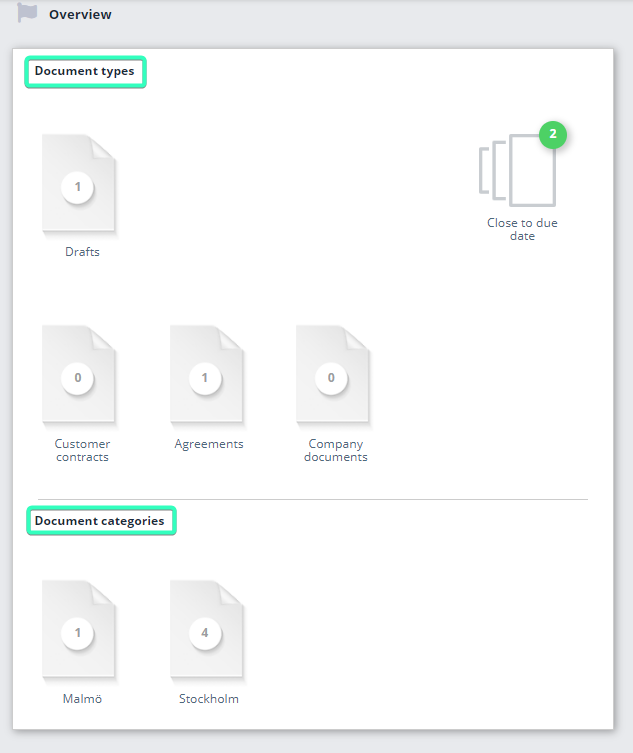
Document types
Document types are created to sort contracts into different types of contract, e.g. Insurance, rental agreements, employment contracts and leasing agreements. It is in document types that you enter the start and end date for a contract and to make the connection to the supplier register. You can also add the person who is responsible for the contract.
Document categories
Document categories are not essential but do offer an opportunity to categorise document at more than one level. Document categories might include companies or departments.
Document search
In the Documents & Contracts module, you can search in several ways. Just like in the Invoice module, you can search for a word or phrase in the scanned PDF file (this assumes that the contracts have been interpreted using OCR). You can also search by Document type or Document name. In addition to these, you can of course search by all or any of the other fields that are shown in the view below.
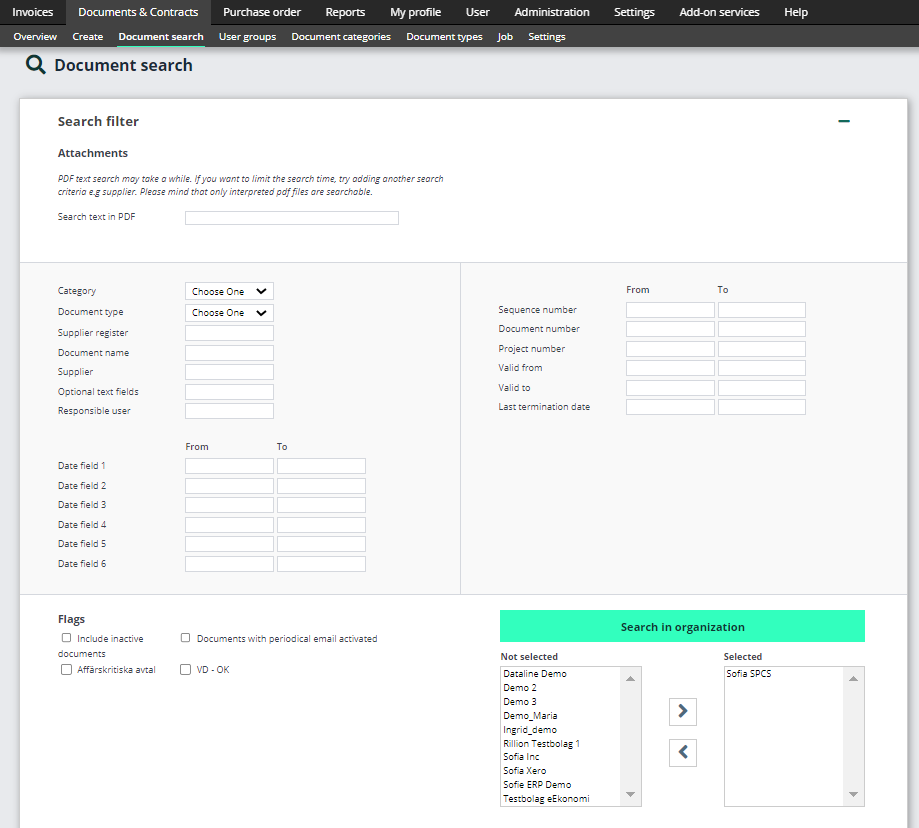
For example, if you have searched for a particular document type, all contracts in that document type will be shown in the search results. If any of the contracts are also in a category, they will be listed under the heading Category. To view a specific contract, you can click on the Edit pen to the left of it.
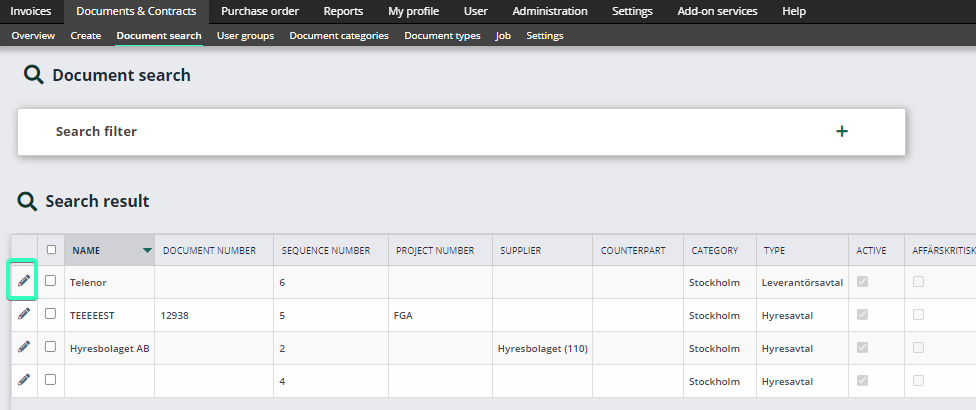
You can customise the columns that appear in the search results by clicking on the column icon at far left. From the search results, you can get a copy of the contract by selecting its checkbox and clicking on the PDF icon, or you can generate an Excel report by clicking on the Excel icon at far right.