Additional review in Rillion One
In Rillion One, you can set up approval flows for review of invoices, which means that after approval, an invoice is sent to a specific user who fulfils specific criteria. There are several ways to enable Additional review. In this manual, we describe how to use additional review rules.
An example of an additional review rule is that all invoices in a project over a certain amount are to be sent to the Managing Director of the company for additional review.
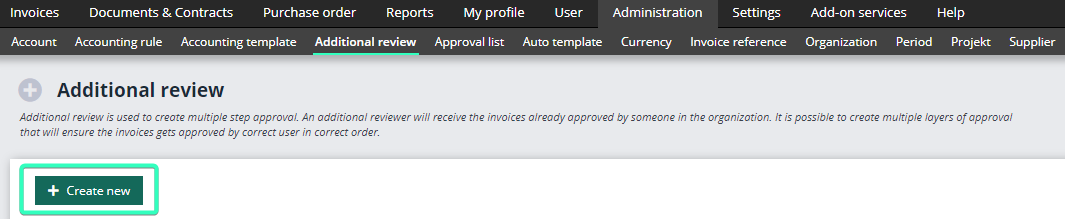
Go into Administration → Additional review, then click on Create new.
- Give the rule a name. Because you might want to add many rules, you should name the rule so that it is easily identifiable, for example, “Additional review Managing Director Project 0001”.
- Give the rule a priority – the higher the number, the higher the priority. This is useful because it allows you to use a number of additional review rules for the same invoice and in that case, it is important that the rules are applied in the right order.
➢ TIP Use priority 10 for your first rule. That will give a range to work within if the approval rules in your company change.
- A user will see the invoice for review provided that the criteria are met. In this case, the user must be the Managing Director of the company.
- If the user entered in the Additional review user field is also responsible for approving invoices, select the checkbox Exception for processed invoices so that the user does not get invoices for review that he or she has already approved.
- You can also set the amounts that will trigger additional review.
- You can specify a range in the “from” and “to” fields. If you want everything over EUR 5,000 to trigger additional review, select the button Everything above and enter the amount in the field.
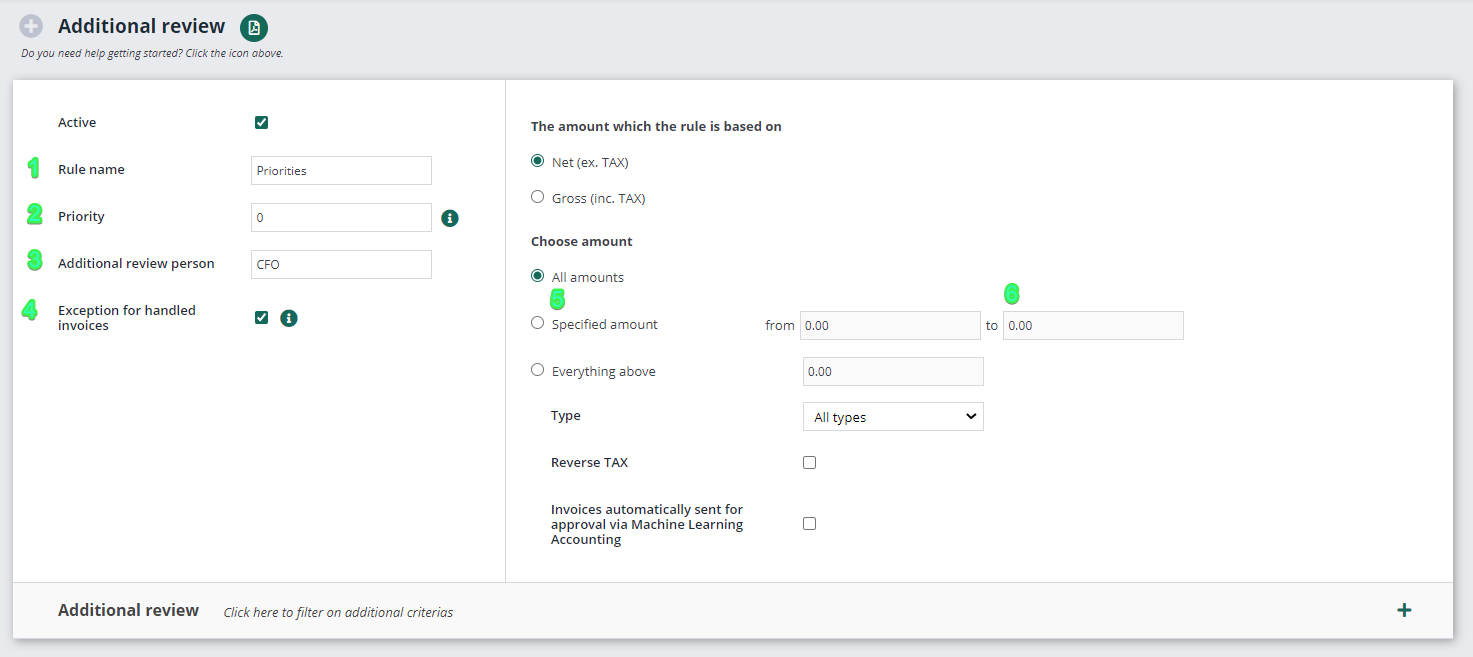
- You can then choose which types to apply this rule to. What this view looks like depends on the dimensions your organization applies in its posting. The dimension is marked in green when it is active for selection.
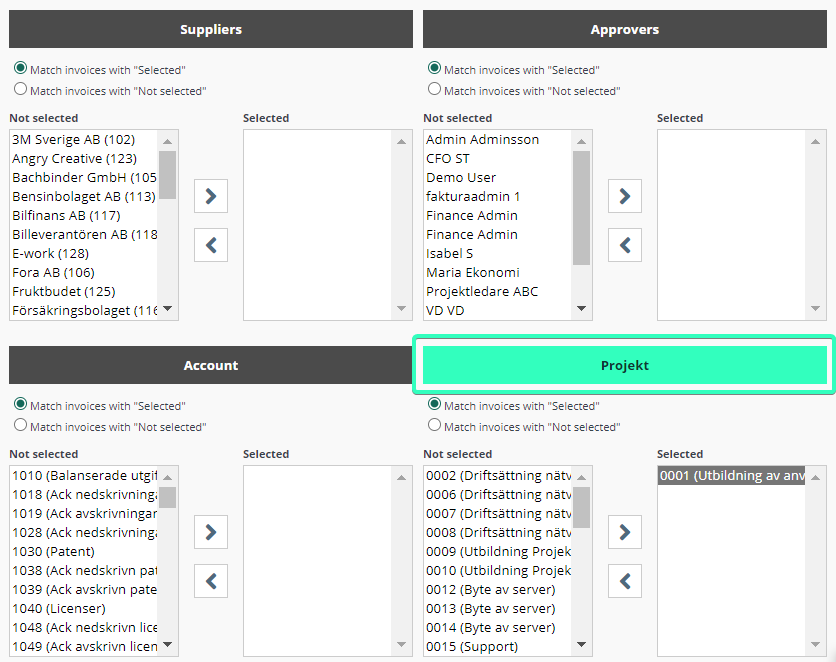
- In the view above, all invoices from all users for all accounts used in project 0001 that exceed EUR 5,000 must be submitted for additional review by the Managing Director. When all selections have been made, click on Save to enable the additional review rule.
- The user will then receive invoices for additional review in a separate folder named Additional review. In the invoice view, instead of an OK button at the bottom right, there will be a button marked I have reviewed the invoice. After reviewing the invoice, the user clicks on this button and the invoice is then ready to move on to the next group (Finance for example) instead of going directly to Ready for recording.

- It is also possible to process invoices waiting for additional review in batches. You select them in the folder and then select the action Release for export and then click on OK.