
Rillion Analytics is a built-in reporting tool in Rillion Prime that gives you real-time insights into your invoice processing and financial performance. It helps you monitor automation levels, vendor behavior, approval flow efficiency, and trends in invoice handling. With six AP Automation ready-made reports, it’s easy to track your overall automation rate and identify where to improve—such as enabling contract matching or refining approval flows.
A few things first
First things first; does your organization have a license for Rillion Analytics?
Rillion Analytics is included in your license if you have the package Professional or Premium. If you are unsure of which package your organization has, you can contact Rillion Support or your Customer Success Manager.
Once enabled, you can access Rillion Analytics directly from the Rillion Prime interface. Analytics includes a total of 17 ready-made reports covering areas like automation levels, approval flow efficiency, spend, and cash flow. These reports are designed to be easy to use and require no advanced analytics skills. If you're new to the tool, there are also user guides, overview videos, and deep-dive training sessions available to help you understand how to use each report effectively.
Access to Rillion Analytics is controlled through role-based permission groups. If you don’t see the Analytics tab or specific reports, your role may need to be updated to include the correct permissions. Your system administrator can adjust this for you.
Increase AP automation
To help your organization save time in the AP process, it's essential to automate as much as possible. In this guide, we will focus on the following key metrics for improving AP automation:
- Successful account coding
- Successful flows
- Touchless invoices
- Successful supplier matching
- % E-invoices
Successful account coding
To code an invoice to the correct account and objects like cost centers, projects etc. are often a challenge in an organization. The more you can automate the better quality you will get with less time spent. An invoice with a successful account coding means that a correct suggestion for the coding was set automatically in the invoice log and no changes have been made manually during the whole process from the invoice log to the final registration in the ERP system. If you make any change in the accounting code proposal, even a small change like the tax, the invoice will be considered non-successful. The aim is to have as high % of invoices with successful coding. In Rillion Analytics you use the Executive dashboard where you can see your organizations % compared to other Rillion customers %.
A successful account coding means that an invoice was automatically assigned a correct code in the invoice log and no change has been made manually during the whole process from the invoice log to the final registration in the ERP system.
To code an invoice to the correct account and objects like cost centers, projects etc. are often a challenge for an organization. The more an organization can automate, the better quality and less time is spent manually handling the invoices. Note that any change to the accounting proposal, even a small change like the tax amount, will result in the account coding proposal being considered non-successful.
Use the Executive dashboard in Analytics to see how your organization is performing compared with the benchmark (average of all Rillion customers).
The Executive dashboard
Click this link in Analytics:
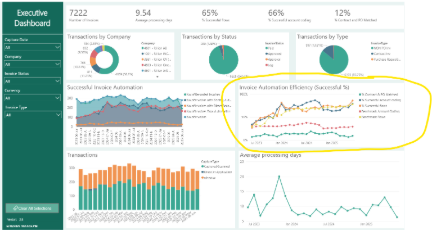
View the graph Invoice automation efficiency:
To expand the size, click on the full screen symbol
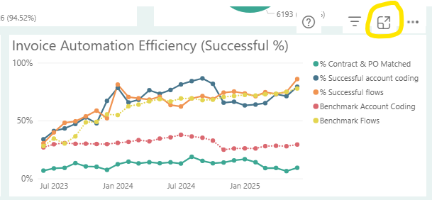
Analyze your organizations performance. The blue line shows your organization’s % and the red line shows the benchmark of other Rillion customers. In the above example the organization % is higher than the benchmark for all months. However, the Metric was even higher 8 months ago, so it has potential for further improvement.
To understand how your organization can improve its performance use the Invoice Summary Report in Analytics.
Invoice Summary Report
Click this link in Analytics
Navigate to Invoice Summary Report

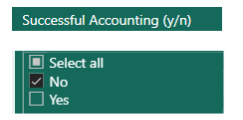
Use the slicer function by selecting “No” in the successful accounting slicer.
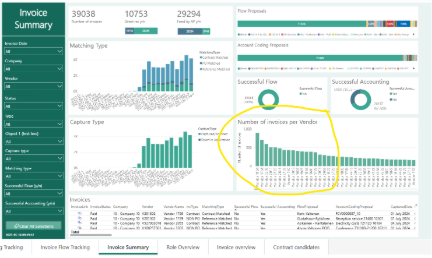
In the following section you are able to see the vendors that have the highest rate of unsuccessful coding.
There could be different reasons why the coding proposal was changed manually. The reasons differ depending on the matching type:
AI-matching
If a certain vendor has a high volume of unsuccessful AI-invoices the reason can be:
a. Accounting proposal with more than 3 lines
b. Unstructured references from the vendor
c. Inconsistent history in the postings
a. Accounting proposal with more than 3 lines
If the invoice needs more than 3 accounting lines, the AI might have problems. To get around this you can deactivate the AI for this particular vendor on the vendor card in the application and use Reference matching instead with an Account coding proposal with % per line etc. Another way is to simplify the accounting using fewer lines and dummy accounts/cost centers. If a later split is needed in several accounts/cost centers one option could be to create that split on a monthly basis in the ERP-system instead. A third way is to contact the vendor and ask them to send one invoice per cost center or project meaning that you can use just one accounting line per invoice instead of several.
b. Unstructured references from the vendor
When vendors mix references or project numbers, the AI system matches with lower confidence. In such situations, it is essential to provide education to those involved and clearly communicate the importance of accurate referencing.
c. Inconsistent history in the postings
If approvers have chosen account A for certain invoices and account B for others of the same type, this inconsistency may reduce the AI's confidence in matching. It is advisable to provide guidance to these approvers to emphasize the importance of consistency in the approval process.
Reference matching
If a particular vendor has several unsuccessful invoices using Reference matching the reason may be:
a. Outdated Account coding proposals
b. Unstructured references from the vendor
c. Reference matchings using “Standard” as account coding proposal
a. Outdated Account coding proposals
In Analytics you are able to view all the account coding proposals that have been unsuccessful. Start by analyzing the largest ones and adjust the proposals in the application one by one.
For more details see the step-by-step guide “How to create an account posting proposal in Rillion Prime”
b. Unstructured references from the vendor
If vendors frequently confuse references or project numbers, reference matching becomes less effective. In such cases, vendors should be informed about the importance of accurate references.
c. Reference matchings using “Standard” as account coding proposal
To fully use Reference Matching in Rillion, always add both a relevant Flow proposal and an Account coding proposal. For efficiency, you can assign a dummy account to the proposal and pull the actual account from the Vendor card instead.
For more details see the step-by-step guide “How to create an account posting proposal in Rillion Prime”
Contract matching
Invoices with perfect matching are expected to be 100% successful. If certain contracts are not successful, it is advisable to review these cases and consider adjusting the account coding proposals associated with the contract. For more information see the step-by-step guide “Rillion Contract: Set up a contract for periodic matching”
PO-matching
Non-successful PO-matchings can be:
a. Wrong account and/or cost centre on the order/item type
b. Added fees such as freight
c. Invoices containing both PO and non-PO items
a. Wrong account and/or cost centre on the order/item type
If the account or cost center listed on the order is incorrect, the master data related to the item, item type, or ordering role should be updated accordingly. See the user guide “Rillion Prime - Buyer"
b. Added fees such as freight
Manual freight fees often complicate PO matching. Whenever possible, include these fees in the order or ask vendors to invoice them separately.
c. Invoices containing both PO and non-PO items
It is recommended to coordinate with vendors to split these into separate invoices and apply AI or reference matching methods for non-PO invoices.
Account on Imported lines
The invoices with account on Imported lines should per default always be 100% successful. If certain vendors are unsuccessful, review them and modify the imports accordingly. For more information see the guide “Utilities Rillion Prime”
Account on Invoice
The invoices with accounts on Invoice should always be 100% successful. If certain vendors are unsuccessful, review their cases and contact them. For more information see the guide “Utilities Rillion Prime”
Successful flow
Ensuring invoices reach the right recipients with proper authorization is often challenging for organizations. By automating the approval handling process, companies can improve both the quality and reduce the time spent in the process. In Rillion, an invoice is considered to have a successful flow when the process is set automatically in the invoice log and remains unchanged without any manual changes from the invoice log until final registration in the ERP system. If you make any change, even a small one like adding an additional manager, the invoice flow will be considered non-successful. The aim is of course to have as high % of invoices with successful flows. With Rillion Analytics and the Executive dashboard you can view your organizations success rate compared to other Rillion customers.
The Executive dashboard
Click on the icon on the left with four boxes in Analytics:
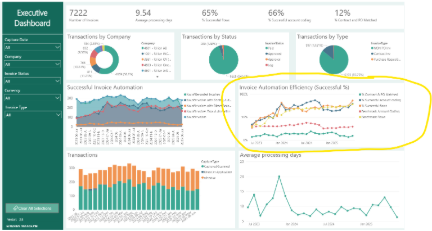
View the graph Invoice automation efficiency:
To expand the size, click on the full screen symbol
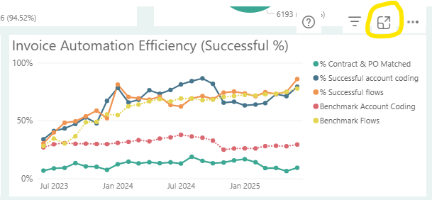
Analyze your performance. The orange line shows your % and the yellow line, the benchmark of other Rillion customers. In the above example the customer % are slightly higher than the benchmark for all months.
To be able to improve your performance you need to analyze the details. You can do this in the Invoice Summary Report in Analytics.
Invoice Summary Report
Click on the icon on the left with the upwards pointing arrow in Analytics:
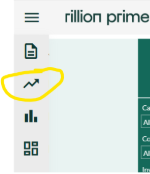
Navigate to Invoice Summary Report

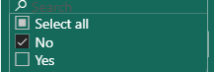
You can now identify the vendors and/or flow proposal that are causing the greatest challenges. Use the slicer function and select “no” in the successful flow slicer.

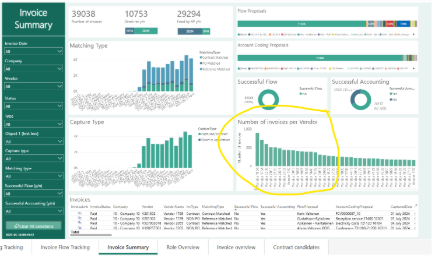
The next section lists vendors with the most invoices that had unsuccessful flows.
There are a number of possible reasons for manual changes to the flow proposal. The specific reasons can vary depending on the matching type:
AI-matching
If a particular vendor has several unsuccessful AI-invoices the reason may be:
a. Unstructured references from the vendor
b. Inconsistent history in the flows
a. Unstructured references from the vendor
If vendors mix references or project numbers, the AI will match with lower confidence. In these cases, you need to educate the people involved and explain why correct references are important.
b. Inconsistent history in the flows
If the approvers in your organization have been inconsistent - selecting role A for some invoices and role B for others of the same type - the AI will generate matches with reduced confidence. For these approvers, it is important to provide education and clarify the significance of maintaining consistency.
Reference matching
If a particular vendor has several unsuccessful invoices using Reference matching the reason may be:
a. Outdated Flow proposals
b. Unstructured references from the vendor
c. Approvers using the “unknown” button
a. Outdated Flow proposals
In Analytics you are able to view all the flow proposals that have been unsuccessful. Start by analyzing the flow proposals that are most frequently incorrect and adjust these one by one in the application.
For more information see the step-by-step guide "How to create a flow proposal in Rillion Prime"
b. Unstructured references from the vendor
If vendors mix references or project numbers, the Reference matching will be less successful. For these cases you need to educate the people involved and explain why correct references are important.
c. Approvers using the “unknown” button
The "unknown" button should be used only as a last resort by approvers. Approvers should be encouraged to exercise discretion and limit their use of this function whenever possible If an approver cannot approve due to user rights, resolve the issue by updating the necessary permissions rather than sending the invoices back and forth.
Contract matching
The invoices with perfect matching should always be 100% successful. For invoices outside the range for automatic matching a relevant flow proposal should be added automatically. If not, you need to look at these cases and adjust this parameter in the contract setting. For more information see the step-by-step guide "Rillion Contract: Set up a contract for periodic matching"
PO-matching
Non-successful PO-matchings can be:
a. Wrong automatic flow proposals in case of matching deviations
b. Invoices containing both PO and non-PO items
a. Wrong automatic flow proposals in case of matching deviations
Adjust this in the settings. For details see the user guide "Rillion Prime - Buyer"
b. Invoices containing both PO and non-PO items
It is recommended to coordinate with vendors to split these into separate invoices and apply AI or reference matching methods for non-PO invoices.
Touchless invoices
The perfect invoice is a correct invoice from the correct vendor that the system can approve automatically and send direct to booking in the ERP-system - a touchless invoice. For Rillion these invoices are either invoices using Contract Matching or PO Matching. The objective is, naturally, to maximize the percentage of touchless invoices. In Rillion Analytics Executive dashboard you can see your organizations % of Touchless invoices.
The Executive dashboard
Click on the icon on the left with four boxes in Analytics:
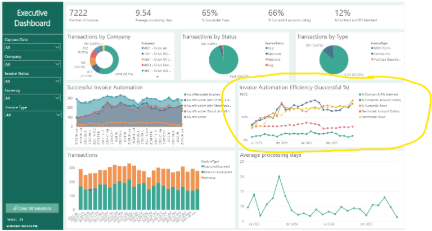
View the graph Invoice automation efficiency:
To expand the size, click on the full screen symbol
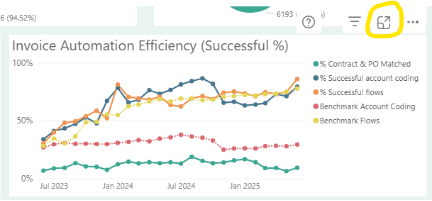
Analyze your organization’s performance. The green line shows your organization’s %. In the above example the % of Contract & PO matched invoices are decreasing in recent months so actions are likely needed.
To be able to increase the amount of Contract Matched invoices you need to find good candidates. This you can do with the Contract Candidates Report in Analytics.
Contract Candidates Report
Click on the icon on the left with the upwards pointing arrow in Analytics:
Navigate to Contract candidates Report

This report helps you identify vendors that may be suitable for contract-based automation. It lists all vendors with more than three invoices, sorted by deviation in invoice amounts. A low deviation indicates that the invoice amounts are consistently similar; a deviation of 0 means all invoices from the vendor have the exact same amount. If the Contract If the number column is empty, contract matching hasn't been applied for that vendor, making them ideal for automation. It is recommended to begin with high-volume Vendors.
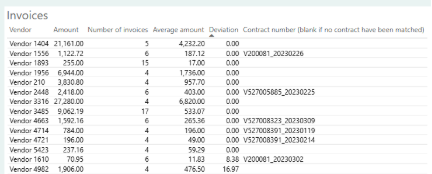
For more information regarding Contract Matching see the step-by-step guide "Rillion Contract: Set up a contract for periodic matching" and PO Matching see the user guide "Rillion Prime - Buyer".
Successful supplier matching
With the invoice log you can automatically identify and find the correct vendor. If the log cannot find a vendor, some information is likely missing. For these cases, use the Invoice log tracking report in Analytics instead.
Invoice log tracking report
Click on the icon on the left with the upwards pointing arrow in Analytics
You will now be able to view the Invoice log tracking report
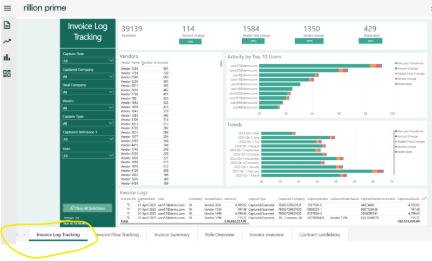
The KPI in the top field “Vendor change” indicates how many times the organization have changed the vendor manually.

Click on focus mode to bring it to full screen:
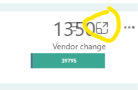
Now click on the blue field:

Go back to the report:

In the vendor section in the report, you will now be provided with a full list of vendors with frequent updates.
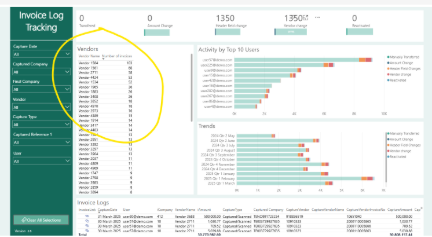
Go through the list from the top and find ways to support the Invoice log to correctly identify the vendor for the next invoice. There are several ways to improve the identification. The invoice log follows five different steps to identify a vendor by a number. The logic is as follows:
Step 1 search for the vendor number. This is a number that the vendor has been assigned. For example, some organizations use a specific vendor number range. A common practice is to use the vendors bank account number as the vendor number.
Step 2 search for the vendor VAT-number
Step 3 search for the organizational number
Step 4 search for the IBAN-number
Step 5 search for the bank account number.
In some cases, like factoring, an adjustment might be needed to the invoice import template. Contact your Customer Success Manager to get Rillion Professional Services support with these cases.
The Executive dashboard
Click on the icon on the left with four boxes in Analytics:
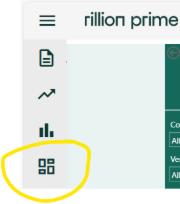
View the graph Transactions:
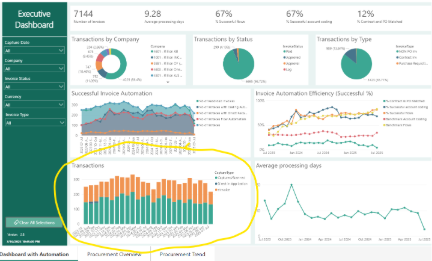
Analyze your organization’s performance. The orange bars illustrate the use of e-invoices and the green paper/pdf. The organization, in the example, has approximately a 50/50 split and therefore a large potential to increase % e-invoices.
To be able to improve your organization's performance the recommendation is to analyze the details in the Invoice Summary Report in Analytics.
Invoice Summary Report
Click on the icon on the left with the upwards pointing arrow in Analytics
Navigate to Invoice Summary Report

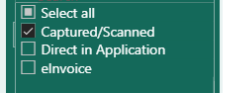
In the Invoice Summary Report select “Captured/Scanned” in the capture type slicer.

In the view “Number of Invoices per Vendor” you will see the vendors with the largest number of invoices sent by paper/pdf.
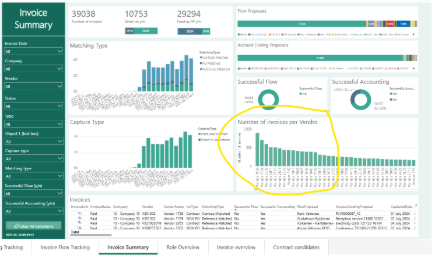
With this information, you can now develop a plan for which vendors to target to improve the usage of e-invoices.