Prepayments/Accruals to Visma Administration
If you are using Rillion One with Visma Administration, you can also register prepayments from Rillion One. It’s important to bear in mind that you must always process prepayments in Rillion One. When an invoice with prepayment is transferred to Visma, vouchers are created each month which are then shown on the line for the current invoice in Visma. You can double-click on the information contained in the prepaid supplier invoice and the dialogue box for Prepayment of the supplier invoice will be displayed, where you can track the prepayment.
Instructions
For this to work you need to make the following settings:
- Open Visma. Go to Accounting → Chart of accounts.
- Set the relevant account as a prepayment account by selecting their checkbox for Propose prepayment.
- Then go to Archive → Company setting → Accounting → Voucher series and select a voucher series for prepayments. You might need to create a new voucher series. Select the checkbox for Prepayments.
- Log in to Rillion One and go to Administration → Account.
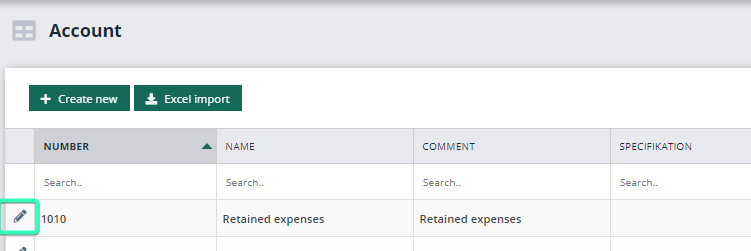
- Find the account that we changed in Visma before and then click on the Edit pen to edit the account.
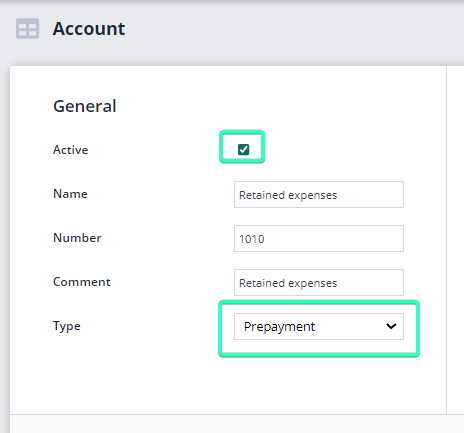
- Check that the account is active and select Prepayment from the drop-down list in the type field. Finish by clicking on Save.
- Then go to Settings → Job configurations.
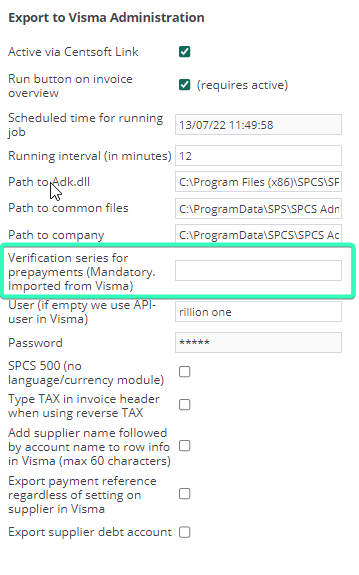
- In the column Integrations with ERP systems, find Export to Visma Administration.
- Enter the voucher series you selected in step 2.
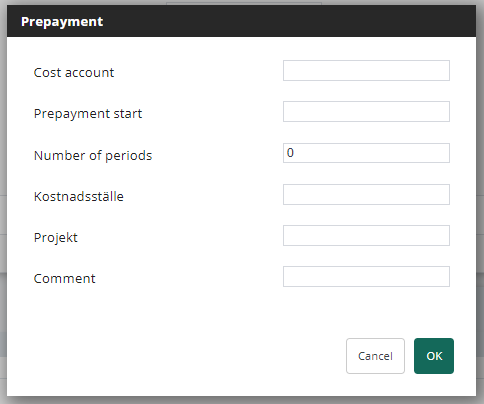
- The next time you receive an invoice that needs prepayment you will enter the prepayments account on the posting line and then the fields below will automatically be displayed, where you fill in the expense account, period start and number of periods and the other dimensions you usually use in your organization. Finish by clicking on OK.