Enable property TAX in Rillion One
The property tax function allows users to easily divide up expenses relating to real properties on different posting lines.
Enable property tax
To start using property tax in Rillion One, you need to first enable it under Administration → Organization where you select the checkbox Use property tax.
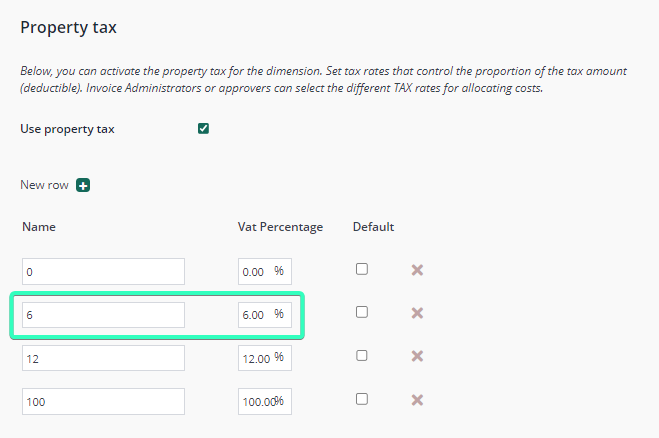
After this, go into the dimensions representing properties, in this example, the dimension “Cost centre”. These can be found under Administration → Cost Centre. For cost centres that represent properties, you need to select the checkbox for Use property tax. Then you fill in the VAT rates to be selectable for this cost centre. In this example, the VAT rates are 0%, 6%, 12%, and 100%. These represent the percentage of the VAT that is deductible. Since 6 % is the most common rate, we mark it as the default rate. See picture below.
You then do the same for all cost centres representing properties.
How to use this function
In this example, we get an invoice with expenses for two different properties. One property is named South, that is, the one created above. The other property is North with VAT rates of 20 % and 50 %.
First of all, we set the VAT to EUR 0 in the invoice header since we will be processing VAT at the invoice line level. EUR 2000 is to be posted to property South and EUR 1000 to property North.

Here, the invoice administrator chooses whether to divide up the property tax here or let the approver do this. If it is the approver’s task to divide the property tax, the checkbox Force use of property tax on posting lines for properties under Administration → Organization can be useful to ensure that no invoices related to property get exported without the property tax being divided up.
In our case, the invoice administrator clicks on Property tax which displays the following dialogue.
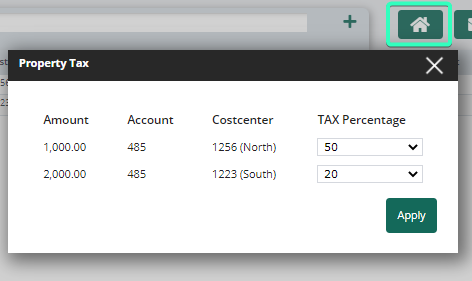
The result of applying the default VAT rates is shown below.
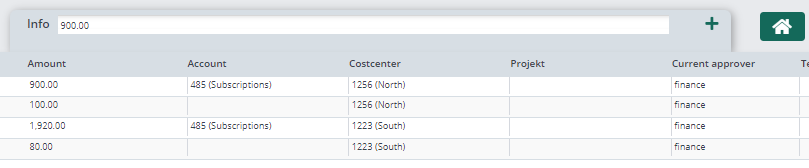
Expenses remain as before but the deductible VAT has been subtracted from the total and added on a line of its own with the input VAT account from the organization. The line which had previously had a total of EUR 1000 now has 988 since 100 * 0.2 * 0.06 = 12, which is the sum listed as deductible VAT.
NOTE! If no VAT account is filled in when the template is applied, it is because the input account is not registered under Accounts and VAT under Administration → Organization.
Other settings for property tax
It may be useful to be able to track amounts that represent non-deductible VAT. This can be done under Administration → Organization by selecting the checkbox Separate line for non-deductible VAT. You can then select a specific dimension for these lines.