Automate the approval workflow and skip review
To streamline the approval workflow, you can set in advance that certain types of supplier invoices should be sent directly to the approvers who should always get them. Then, to ensure that the posting is correct, you can set up an additional review rule such that all invoices must be approved by the invoice administrator before being recorded in the ERP system.
Automate the approval workflow per supplier
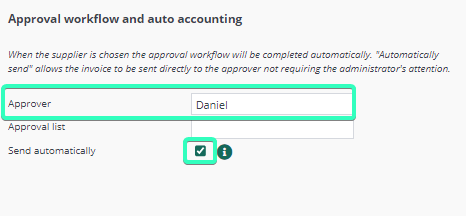
Go to Administration → Supplier. Search for a supplier whose invoices should always be sent to the same approver. Click on the Edit pen beside the supplier and scroll down in the supplier’s details. Under Approval workflow and auto accounting, select the approver to receive the invoice and then select the Send automatically checkbox. This means that the invoice will be sent directly to the approver without first passing by an invoice administrator.
Additional review rule
Go to Administration → Additional review rule and select Create new. Name of the rule so that is describes the rule’s function, e.g. “Additional review invoice admin”. Give this rule a low priority relative to other rules you have added (if you are using additional review rules in your company) to ensure that in the very last phase the invoice will be captured by the accounts department. You can then choose to either Save without activating any dimensions (since this means that all invoices from all suppliers that all approvers post to accounts in all dimensions will end up with the invoice administrator), or choose the specific supplier that you have set up for automatic approval workflow.