Search function in Rillion One
The search function in Rillion One is very useful and dynamic. The user can search for all invoices in Rillion One that they have permission to view. You can search based on all the usual fields such as supplier, invoice number, date, and serial number from the ERP system. The user can also search in several companies at the same time, and search for different flags and statuses and amounts, etc. You can do a Simple search or Advanced search.
Free text search
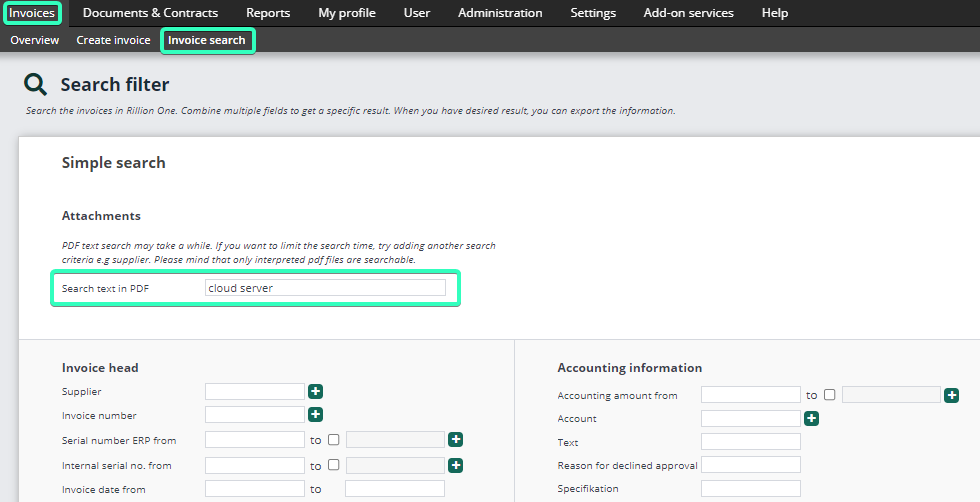
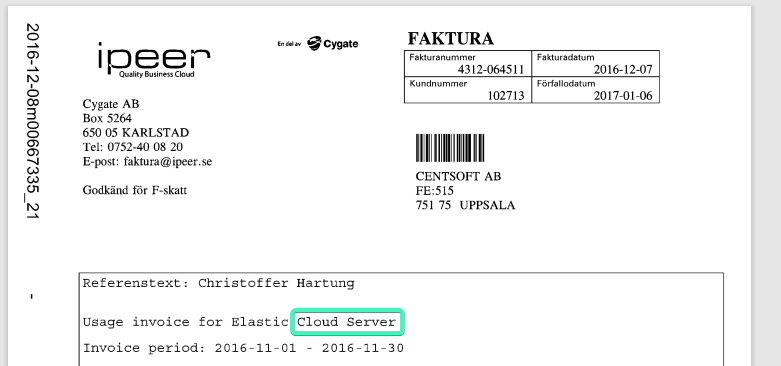
A big advantage of the search function is also the Search text in PDF option, where the user can search for all words on invoices regardless of where they are in the invoice image. In the example, below the user searches for the phrase “cloud server” and the search returns all invoices that contain that phrase.
Once the user has the search results, there are several smart features that can be used. On the right-hand side of the search results, there are three icons which are described below.
Export to Excel

Mark the invoices to be exported to Excel and click on the Excel icon and then select which columns you want to export to Excel. If you click on the button without selecting invoices, all invoices in the search will be included. When the user is in Excel, they can do more with the search results.
Merging of multiple invoice PDF files to a single PDF file

Mark the invoices to be merged into a single PDF and click on the PDF icon. The user will then get a downloaded PDF file that contains all the invoices marked before clicking on the PDF icon. If you click on the button without selecting invoices, all invoices in the search will be included. This is useful for re-invoicing for example, or if the user wants to save or print multiple invoices simultaneously.
Select your own columns to view in the search results

By clicking on the Column symbol, each individual user can choose what they want to see in their search results. An invoice administrator might want to see different columns to an approver.
Quick overview of posting for an invoice

Each invoice has an Information icon. The user can mouseover this icon to get a quick overview of the posting for the invoice.

Save search as favorite
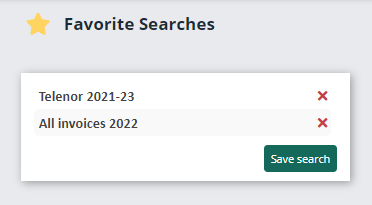
You can save searches you use often. Fill in your search criteria -> click on Search -> Save search