Transaction reports in Rillion One
If you want to search for invoices in a specific project for example, you can use the Search function under Invoices. This displays a list of all invoices that have at least one posting for this project. If you instead would like to see what expenses have been charged to the project you can use the Reports function. This tool gives you a simple overview of the transactions that are linked to a particular dimension (e.g., suppliers, accounts, or projects).
Reports
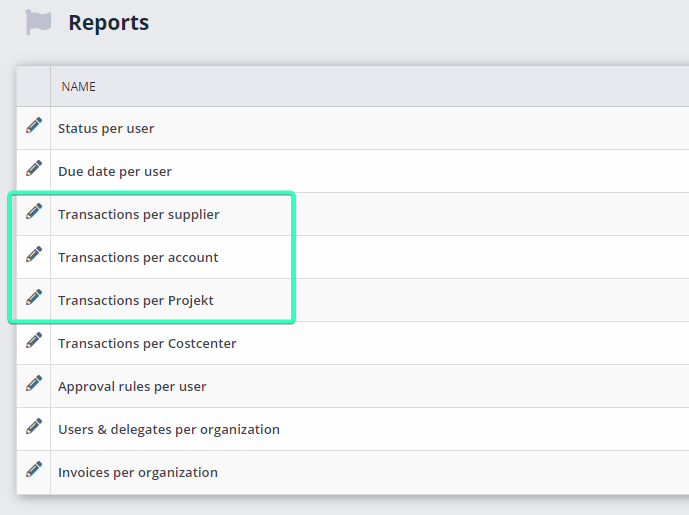
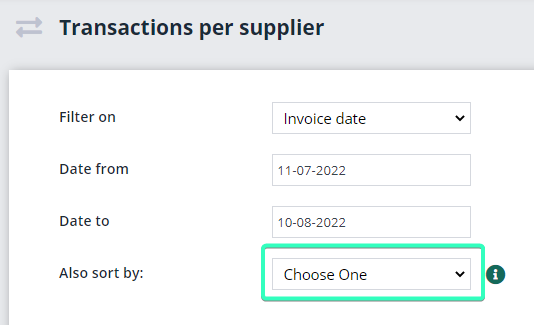
Within each report that gives transactions per dimension, you can combine it with one of the other dimensions. So, in Transactions per supplier for example, you can also see the posting for the expenses generated by a specific supplier, or which projects have been charged. This is done by selecting a dimension in the drop-down list Also sort by. Also select the date range you want to search in.
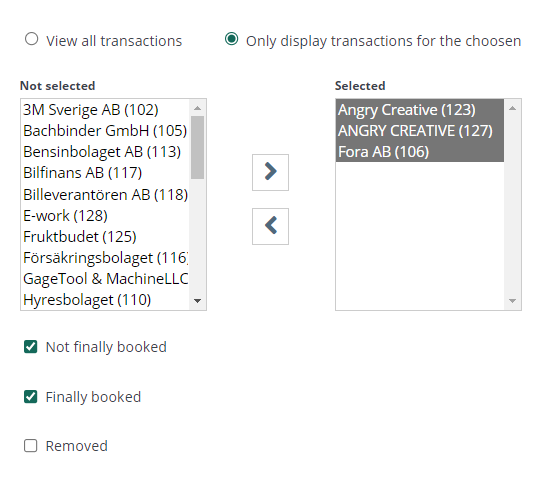
There are two ways of selecting values within the dimensions: One is to retain the already filled in Show all transactions; the other is to select Only show transactions for Selected and then select using the arrows. Then click Create report.
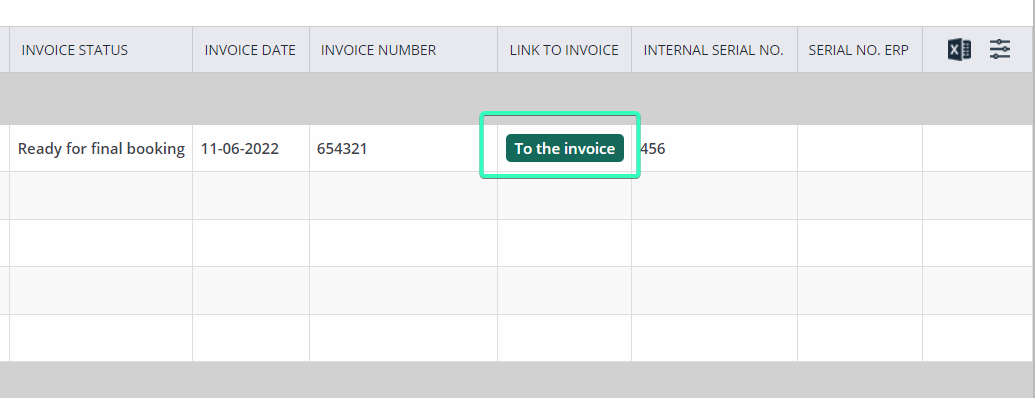
The report is displayed in the format shown in the picture below. You can now see the expenses generated by the selected supplier within the selected time period. During Link to invoice you can click on To invoice to go to the invoice and view more details.
Export to Excel

Click on the Excel icon to export the report to Excel. Then select the columns you want to export. When the exported file opens in Excel, you can continue working with the search results.
Select your own columns to view in the search results

By clicking on the Column symbol, each individual user can choose what they want to see in their search results.