Rillion One Invoice 3.0
Handbook for approvers
To approve:
The status indicates the number of invoices that has been sent to the approver to book and approve.
Additional review:
After an invoice has been approved, it can come to you for an additional review. The rules the organization decide the approval flow, and the invoice goes through you depending on the amount, supplier or the person approving it before you.
On hold (is marked through a box in the invoice header)
A status to show that an invoice is on hold. The invoice will not be able to proceed to final booking in the ERP system. Approvers and invoice admins can place an invoice on hold and both roles can also return the invoice to the approval flow. It is not possible to approve an invoice with this status, as it needs to be in the approval flow, in order to be approved.

Messages:
Messages can be sent between users in Rillion One Invoice. The messages that are sent can be found in this folder, which is located on the invoice overview to the right.
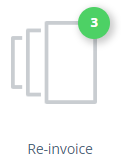
Re-invoice (the name of the flag may vary, and is marked through a box in the invoice header)
An example of a marked flag on an invoice. Each flag can have a unique name. When an invoice is flagged, the invoice admin will know as well. A copy of the invoice will be visible in a folder with the same name on the invoice overview.
2. Deny approval / change recipient on an invoice 5
3. Approval from a smart-phone 6
5. Different ways to display the invoice 7
6. Mark an invoice as On hold 7
9. Email invoice to external recipient 8
13. Features in the invoice list 10
Working with the invoice
Approve an invoice
After logging in to Rillion One Invoice with your unique user ID you will see an overview with the invoices assigned to you. You will also see the invoices that you yourself have placed in different folders. An explanation of the different statuses can be found in the beginning of this document.
Choose the folder you wish to work in. To approve your invoices, do the following:
- Open the folder To approve / Additional review. You will now see a list of unapproved invoices.
- In order to open all the invoices in sequence, tick the box at the top left of the list and click OK or click the pen symbol to the left. This will lead to the invoices being displayed one after another as you approve them.
- Review the invoice and fill in any additional information in the booking. Press Enter to proceed between the areas of information.
- If everything is correct, continue to press Enter until the invoice is approved. You can also press the OK-button on the lower right side. When doing the additional review, the button will be called I have checked the lines and is located in the same place as the OK button.
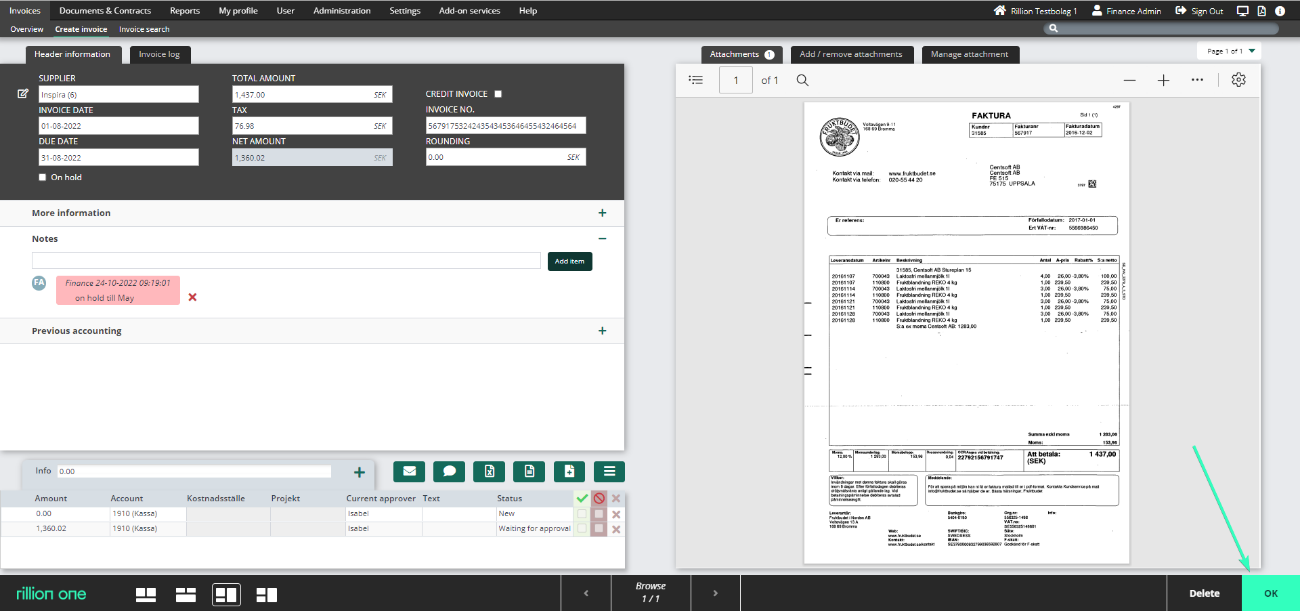
- When placed in an information field such as cost account, project or cost center, press spacebar to find all the information within that dimension. To browse, press the arrow keys on the keyboard.
Deny approval / change recipient on an invoice
If the booking is incorrect or if you are not familiar with the invoice, you can deny approval.
- Tick in the red box to the right on the booking row.
- Report the reason, and the invoice will then be returned to the administrator.
- Click OK to deny invoice.

If the invoice has been sent to wrong approver you can change recipient.
- Change name in Current approver to another user’s name.
- Click OK.
Approval from a smart-phone
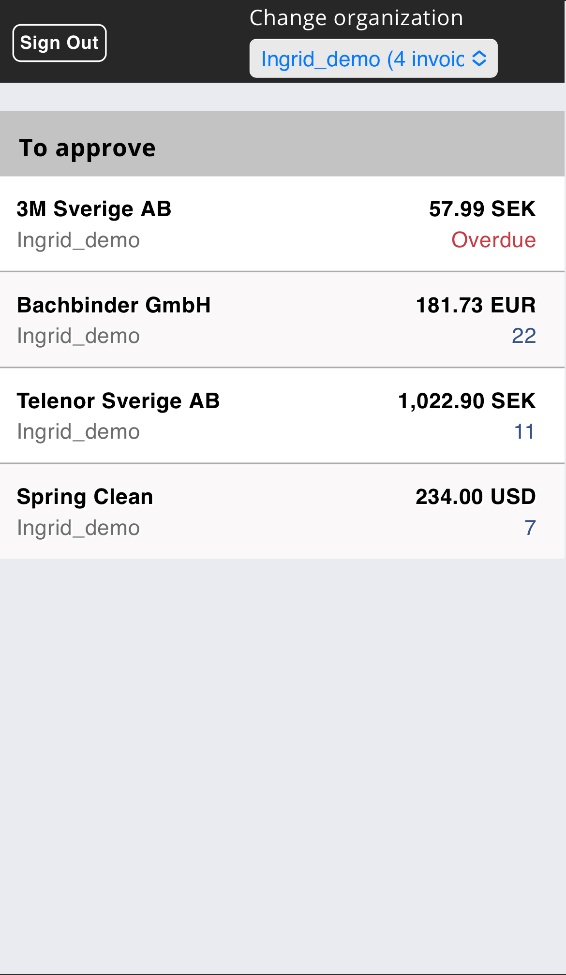
To login, use the same link for external use as you use on a computer. Default mode of the page is mobile, but it is also possible to use the same interface as on desktop. On a cellphone this is not recommended, but it could be used on a tablet.
After login you see which invoices that have been sent to you for approval or supervisory control (additional review). Open them and check the accounting lines. Change what needs changing. Option is where you choose whether to Approve or Deny the invoice (Approve is default). When everything looks correct, press Save and close.
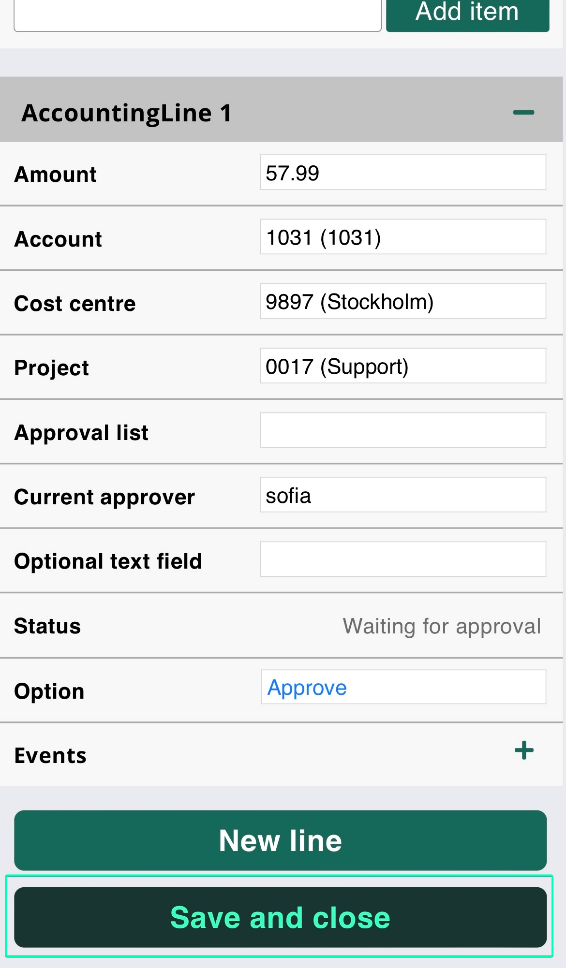
The tab Invoice head shows you the same information as in the desktop version of Rillion One. The tab to the right, Invoice, links you to the invoice image.
Invoice log
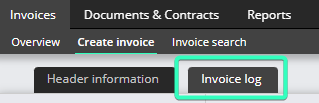
Each invoice has a log. It shows who looked at the invoice, what has been changed in the booking, and when the invoice was registered in the ERP system. The log can be found in the invoice overview next to the tab Header information.
Different ways to display the invoice
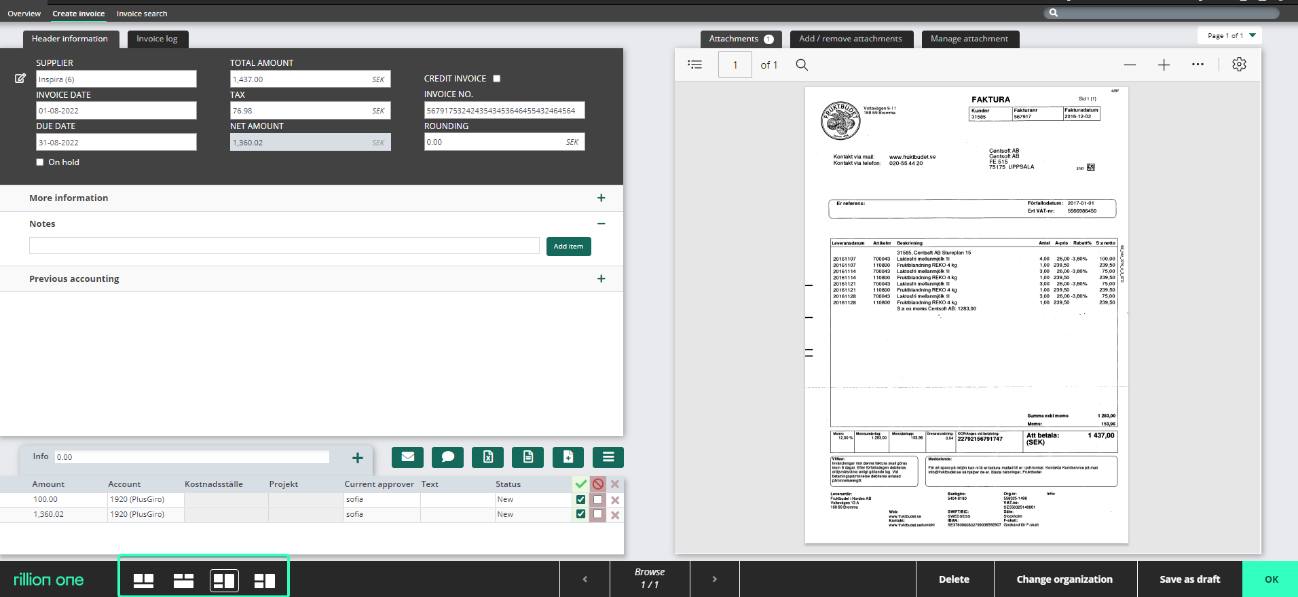
To alter the layout of the invoice there are 4 different options, you find these in the bottom left corner.
Mark an invoice as On hold
If you can’t approve an invoice right away you can mark it as On hold. The invoice will not proceed in the approval flow and it will be visible for both administrator as well as the user that the invoice is On hold. Both users can return the invoice to the approval flow.
- Tick the box On hold in the invoice header. Specify the reason and click OK.
- To release the invoice, open the invoice and un-tick the box. If you have several invoices you wish to release at once, tick the box at the top left of the invoice list and click OK, after choosing Action for selected: Remove On hold.
- Use Notes to add more information on why the invoice is marked as On hold, as reminder to yourself and also the invoice admin.
Create more rows
With proper authorization you may add rows in the booking, which enables you to send the invoice to several approvers simultaneously. On each row, you may fill in different accounts, different projects etc.
- Change the amount on the booking row and book it as normal.
- There are two ways to then create new rows.
- Press Enter until a new row automatically appears with the remaining amount.
- Click the + for a new row. The remaining amount will appear automatically.
- Create the rows you need and press OK in the bottom right corner to finalize.
One booking row:

Several booking rows:

- When an invoice is split between approvers all of them receive the invoice at the same time. When the approver logs in to Rillion One their booking row is located at the top.
Messages
You can send messages in Rillion One. Messages are located to the right in the invoice overview.
- Open an invoice, click Send message within Rillion One.

- Write a message – click Send. You can also add additional recipients or change the default “admin” to any user in Rillion One.
- To answer a message, you have received in the folder – open the message, reply and click Send.
Email invoice to external recipient
To send the invoice to an external recipient click Email invoice above the booking row. This will generate an email with the invoice as an attachment.

Notes
You can add notes about an invoice that the next person who opens the invoice will see.
- Click Notes, on the left side of the screen.
- Write your note in the field that appears and finish by clicking Add item.
- Your note will be marked in grey.
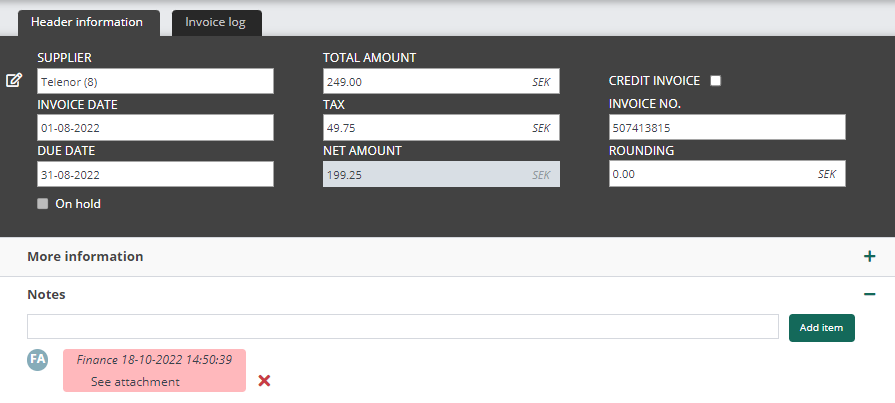
To remove the note, click the X to the right. You can only delete notes you have written yourself.
Add an attachment
A user can add attachments that belong to the invoice, such as a waybill, a receipt or a participant list.
- Open an invoice. Above the invoice there is a tab called Add / remove attachments.
- Choose the file you wish to upload, and click Chose files.

Search invoices
Rillion One Invoice lets you review the invoices you have handled at some point. You can search invoices by supplier name, invoice number, booking information etc.
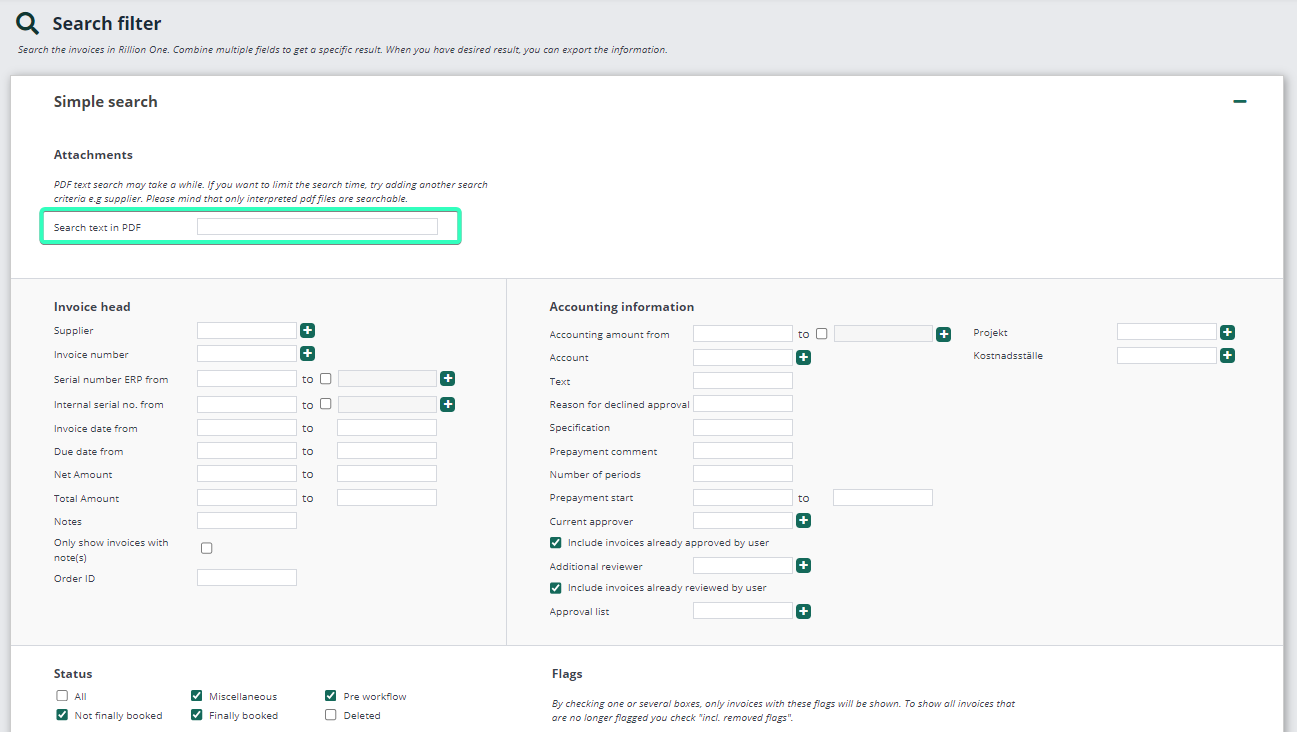
On top of this, you can also search on any word on the invoice (except manually uploaded invoices), provided that the font is clearly interpreted by the system. It’s convenient if you are searching information regarding a phone number or a vehicle’s license place.
- If you want to find invoices from a certain supplier in several organizations, open
Advanced search and choose the organizations. Then you have access to the supplier directory of all the organizations. Then choose the supplier from each directory you are interested in.
Features in the invoice list
In every invoice list there are several common features on the upper right side of the list.
Export to Excel 
Tick the invoices that you want to export to Excel and click the Excel-button. Choose which columns to export and open the file in Excel for further data analysis.
Merge invoices to 1 PDF 
Tick the invoices you wish to merge into 1 single PDF file and click the PDF symbol. The file is then convenient to send as an attachment in an e-mail, or print.
Choose which columns you want to see 
By clicking the column symbol, each user in Rillion One can adapt the list view in each status.
My profile
Change password
It is a good idea to change password once in a while. To do so, follow these instructions:
- Click the tab My profile.
- Write your new password in the field Password. Repeat the password in the field below, Verify password.
- Click Save.
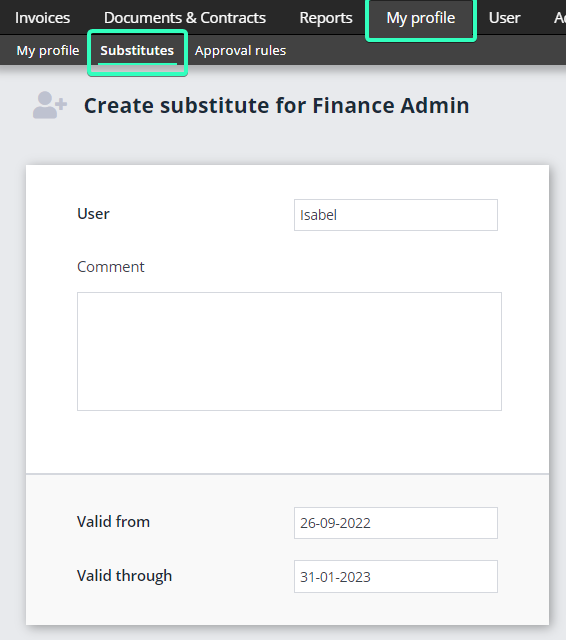
Add a substitute
If you are away on vacation or on parental leave you can add a substitute to approve your invoices while you are away.
- Click My profile, then click Substitutes.
- Click Create new.
- Fill in who should approve your invoices and the dates.
- Click Save.